-

- Guide
-

TARA PLANET Android INSTALL

Q) How do I install the TARAPLANET APP on iPhone?
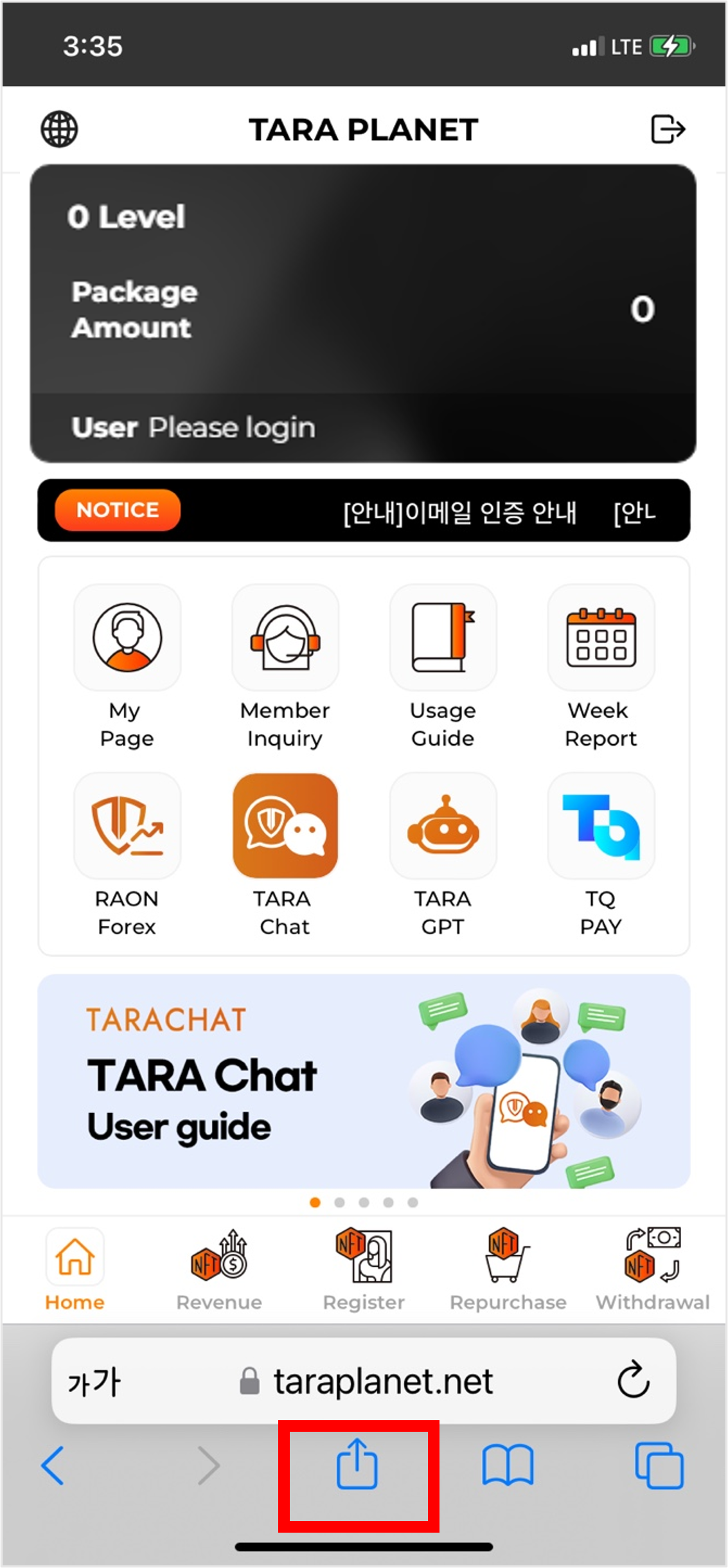
1) Click the Share button at the bottom.
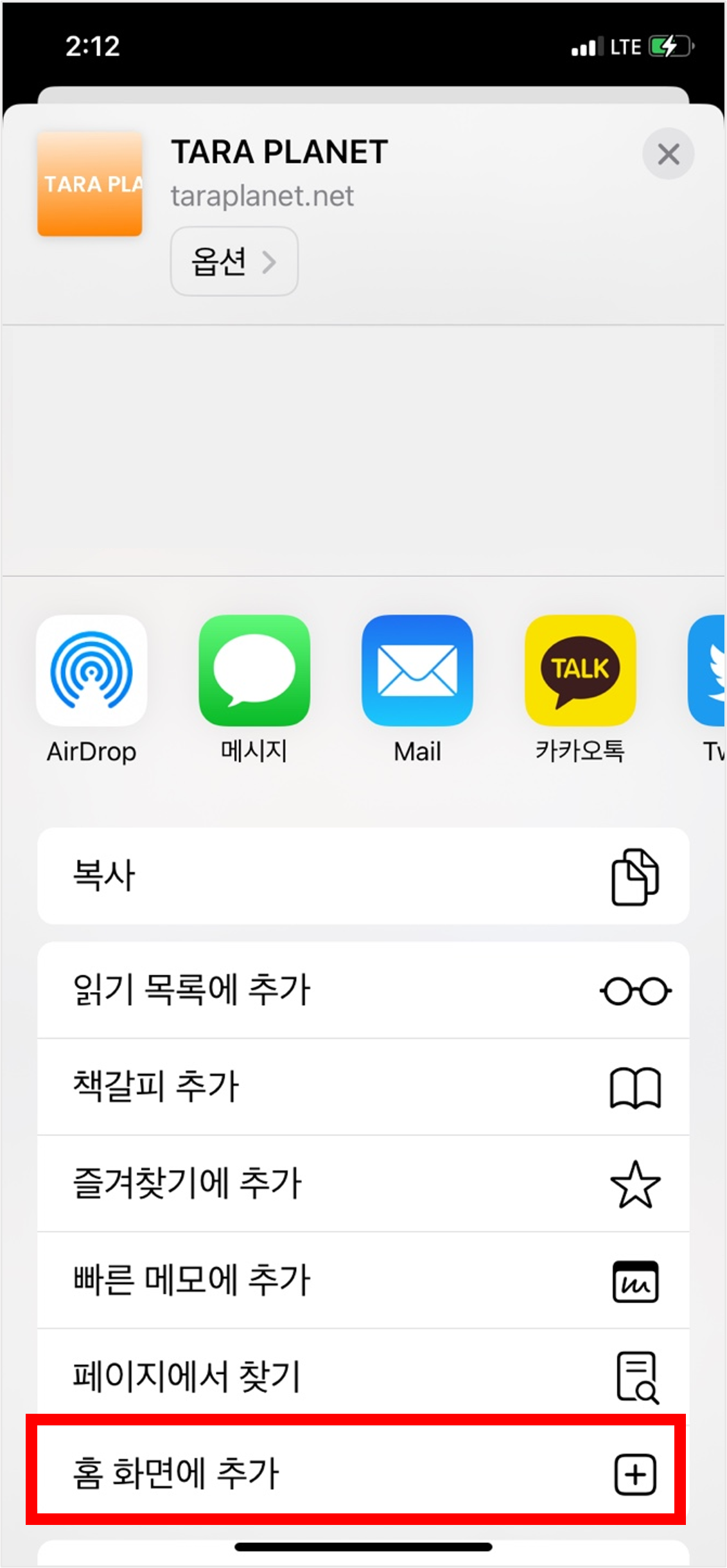
2) Click Add to Home Screen.
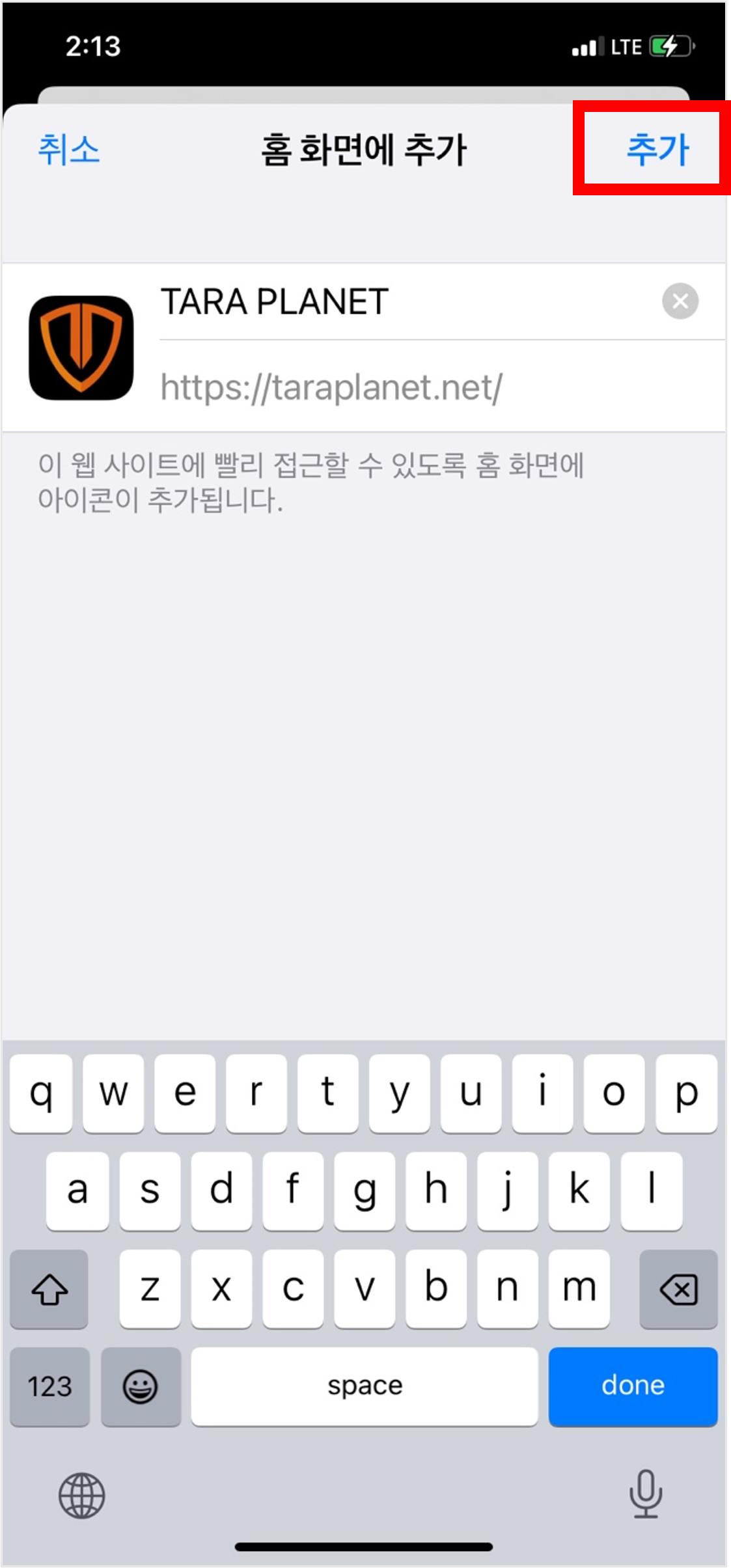
3) Check the site address you want to add to the home screen and click Add.
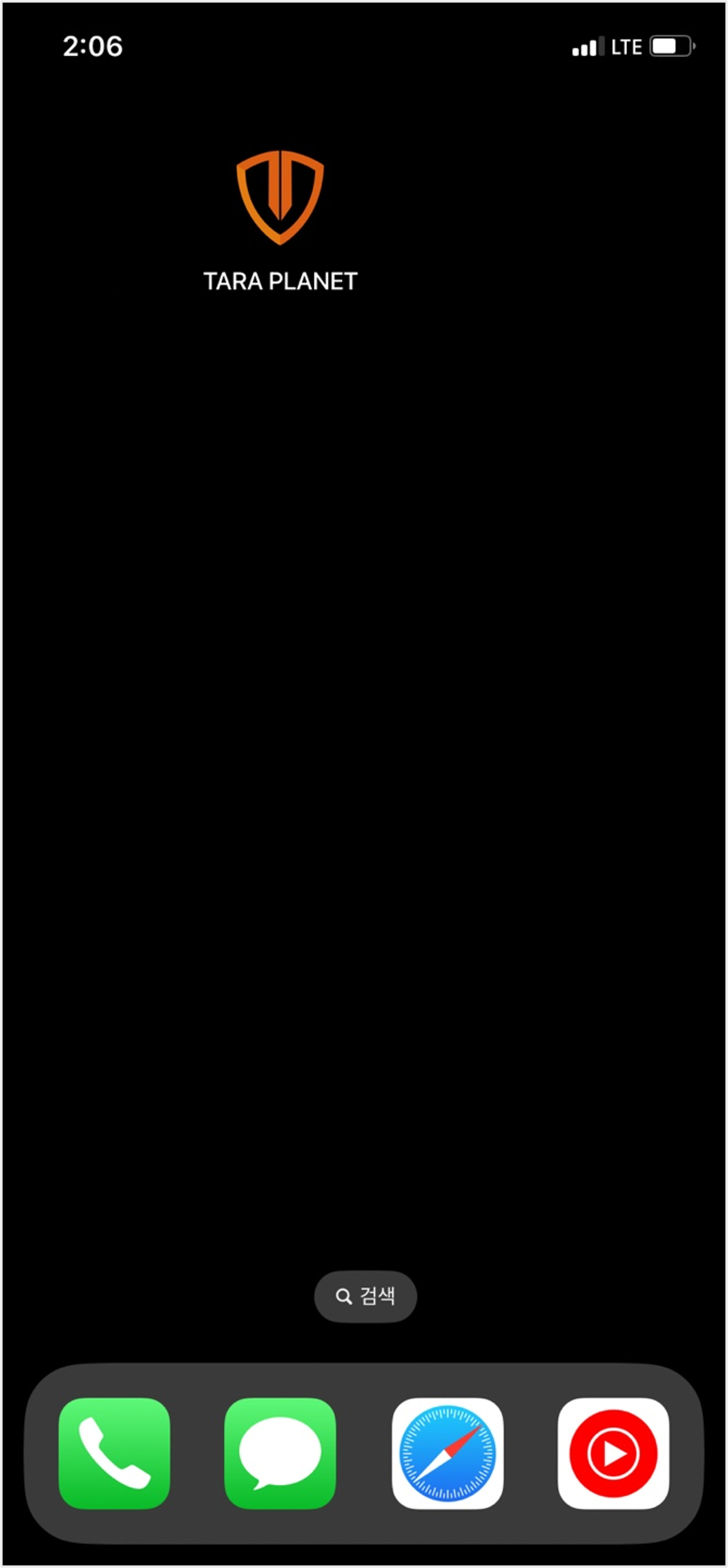
4) Click the icon added to the home screen.
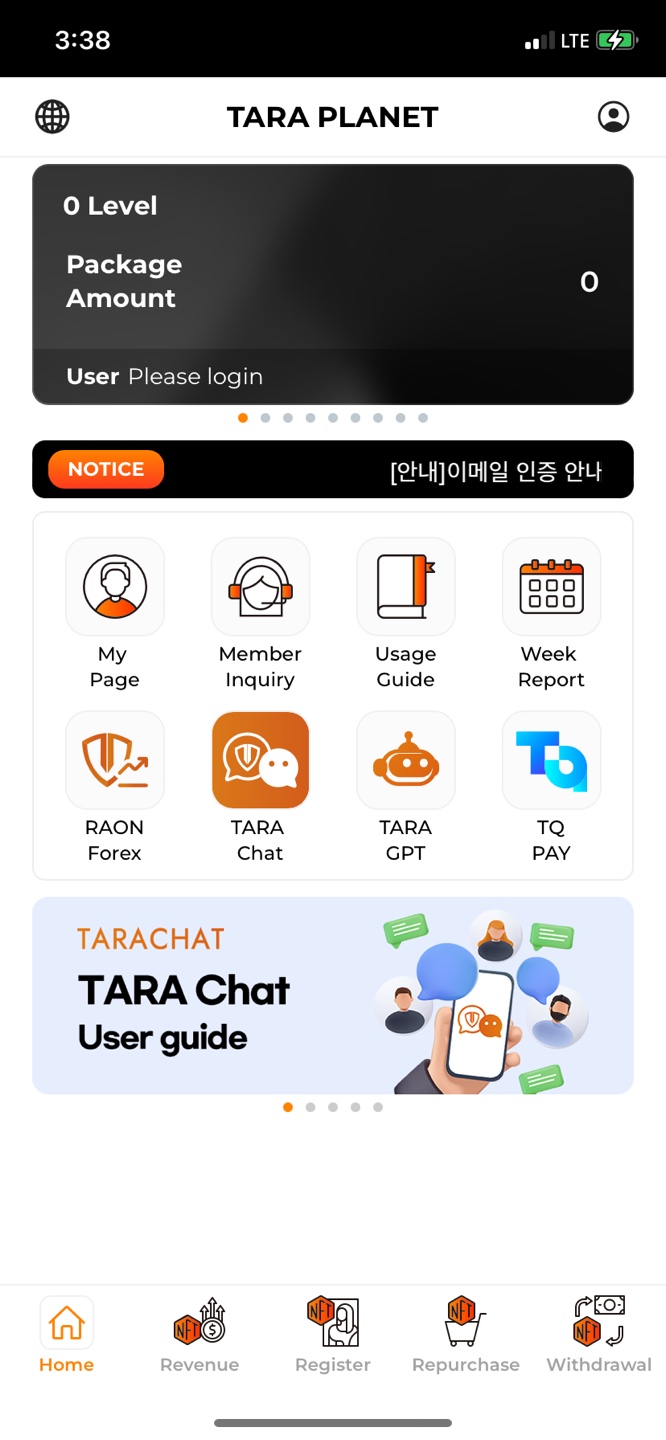
5) If it is confirmed that the upper and lower address lines have disappeared, the installation has been completed normally.
Q) I want to change the language, how do I change it?
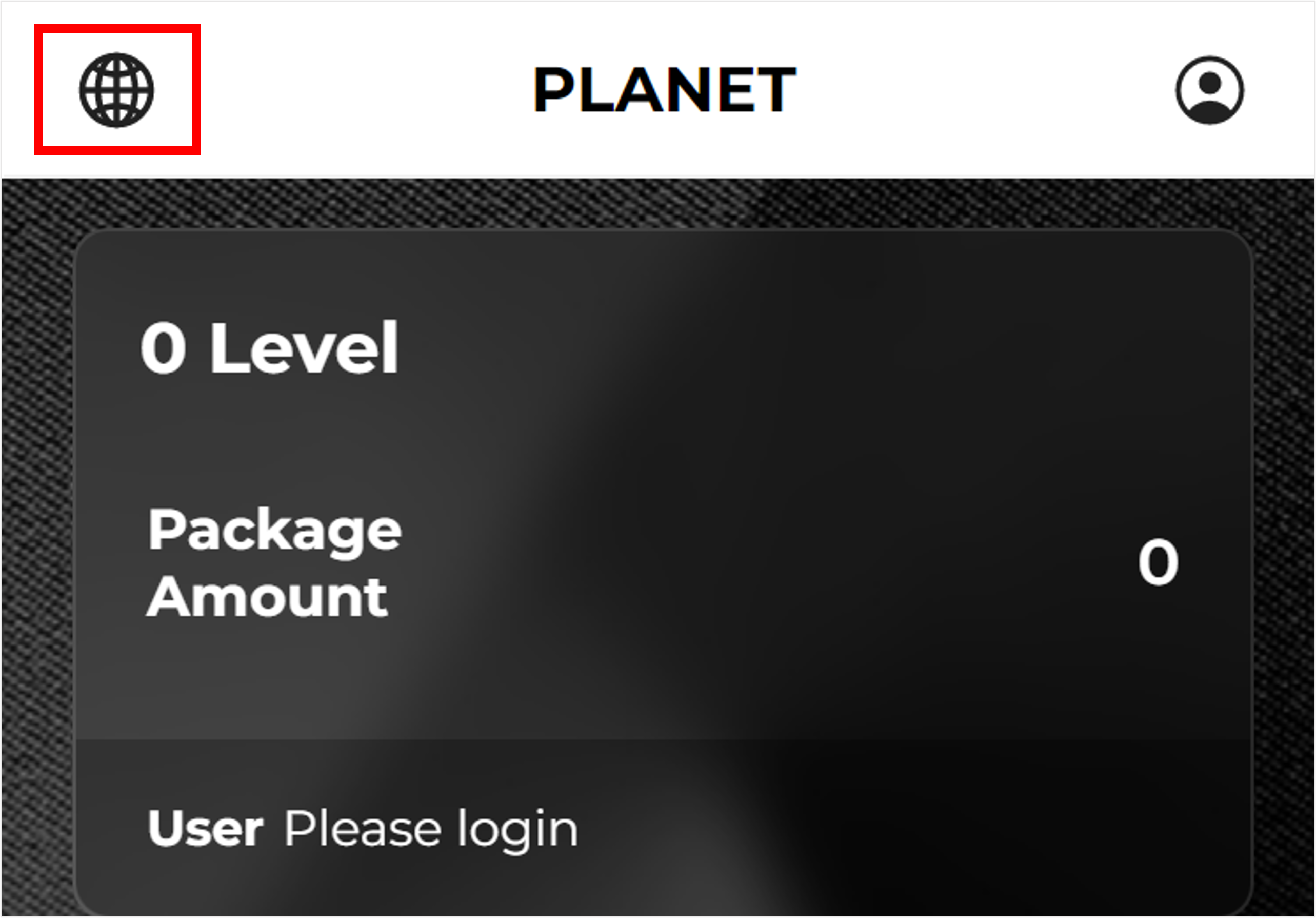
Click the top globe icon to change the language to English or Korean.
Q) Where can I log in?
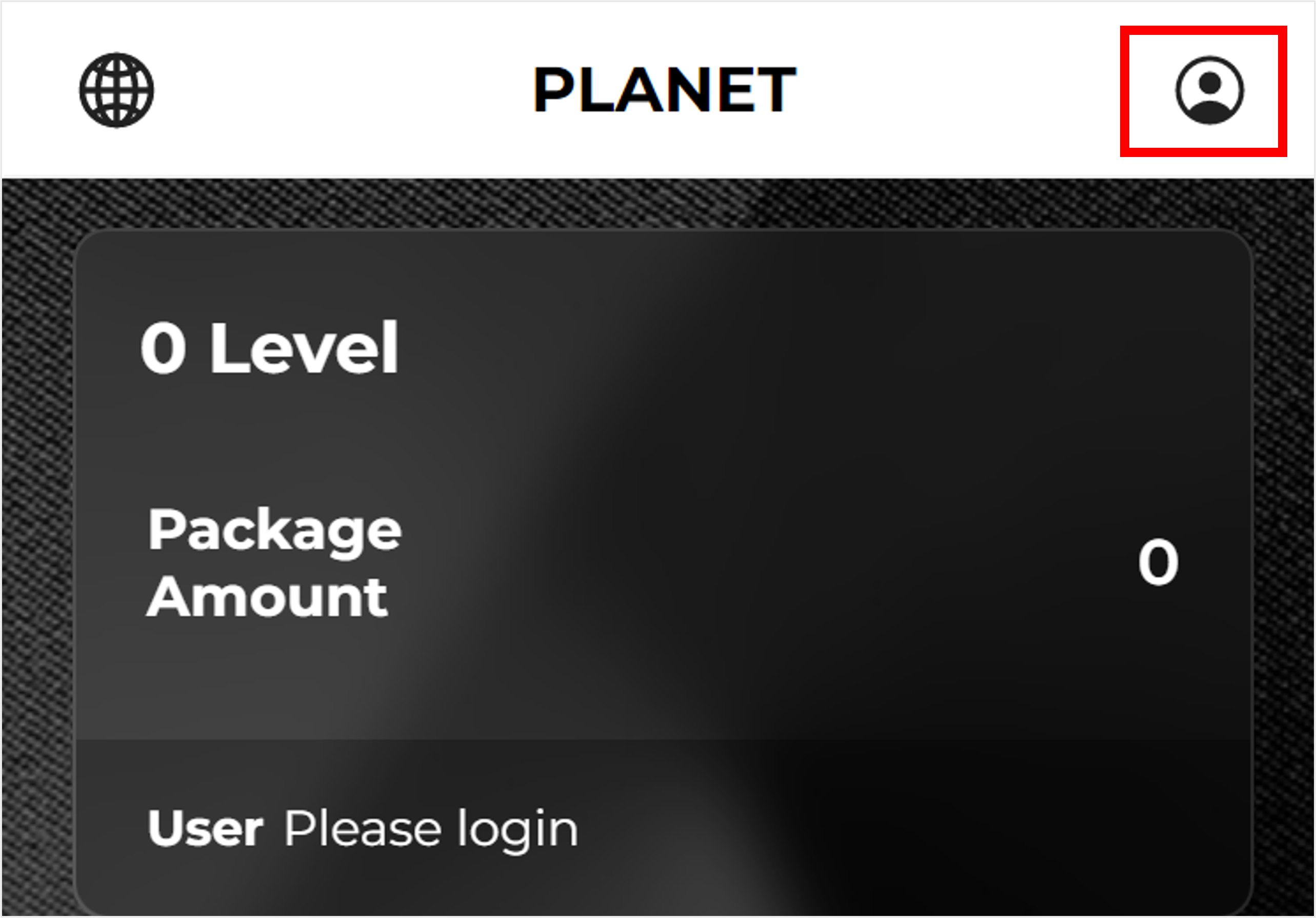
If you click the top person icon, you can log in.
Q) How do I register for NFT?
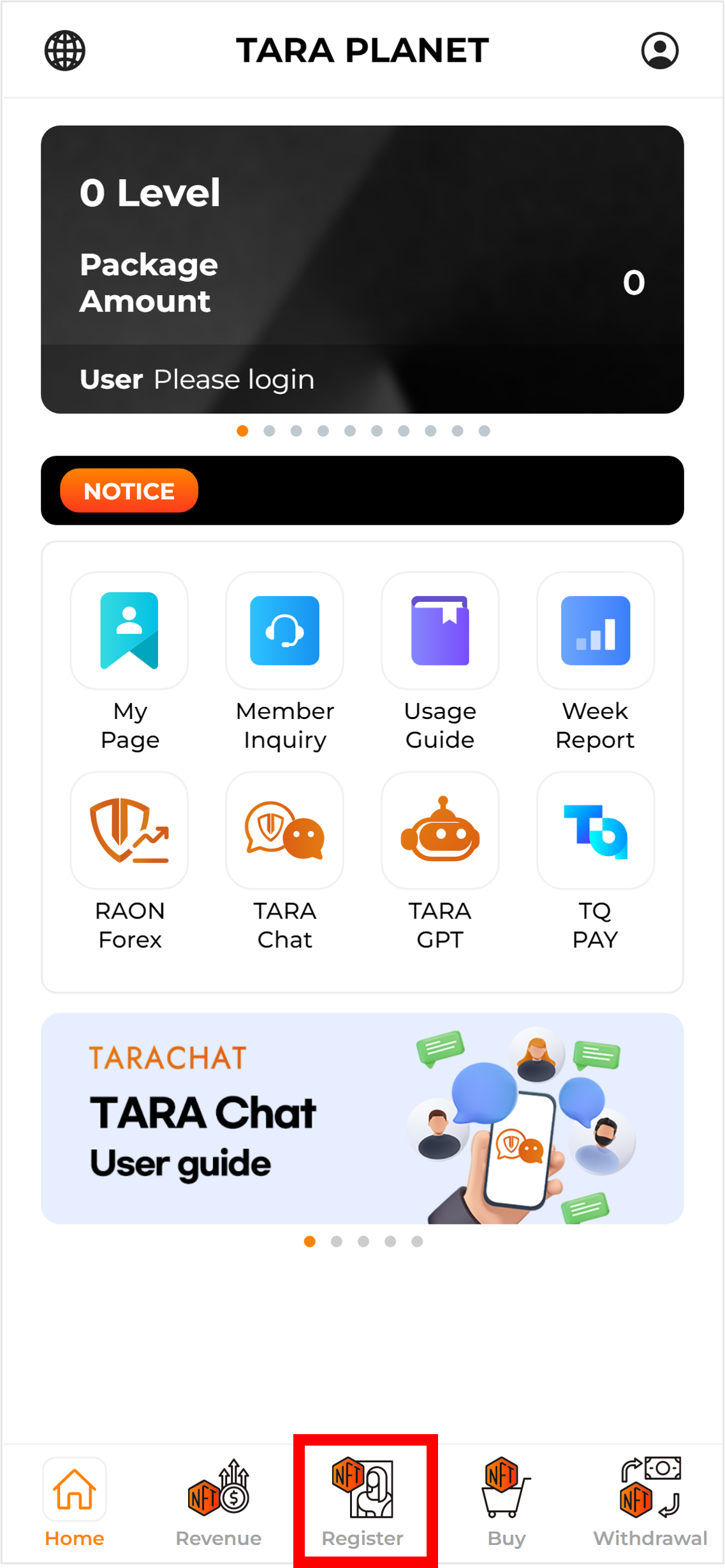
1) Click the Register icon located on the bottom tab.
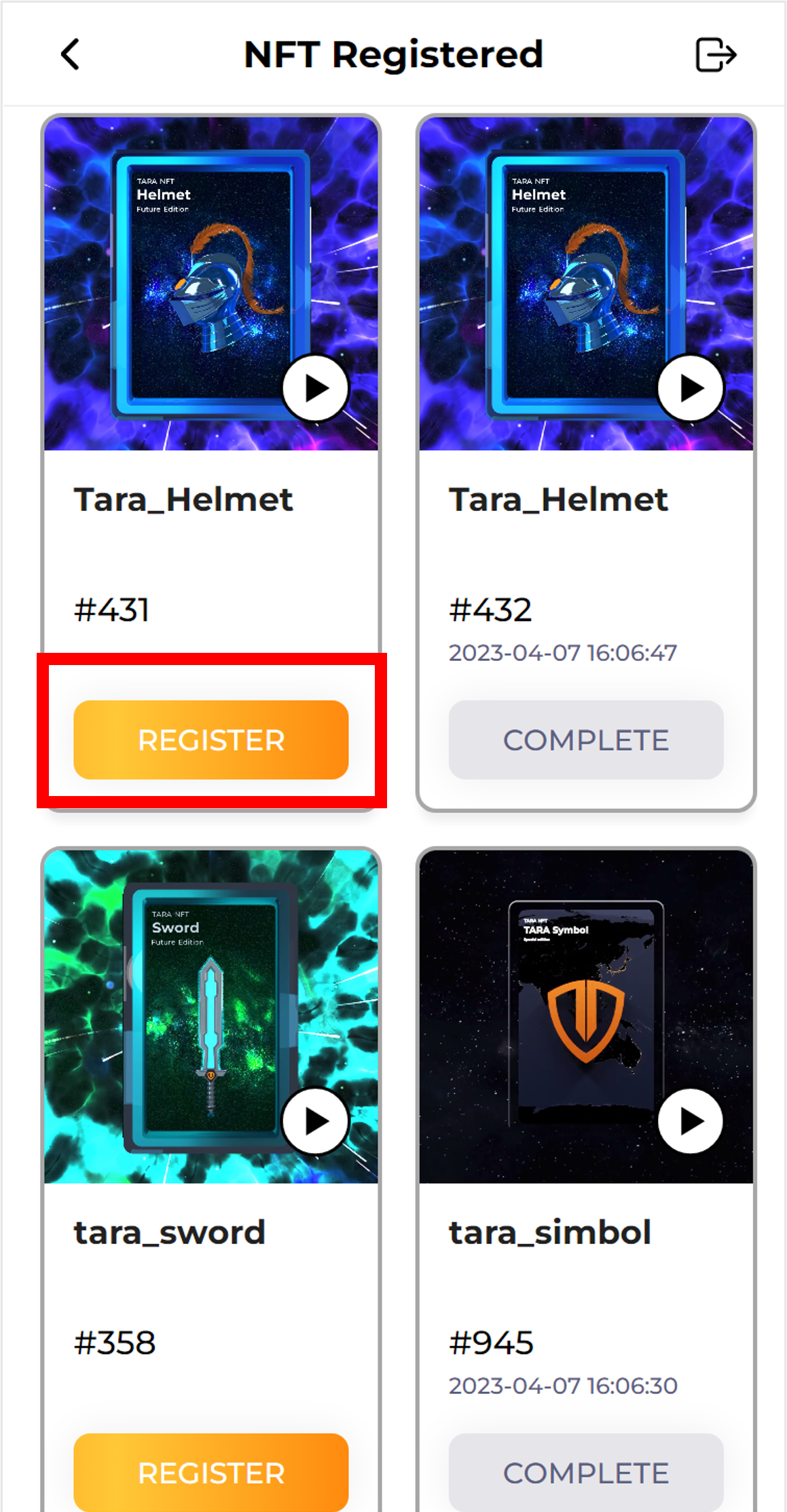
2) In the list of NFTs you currently have, click the REGISTER button of the NFT you want to register to complete the registration.
Q) How do I Buy NFT?
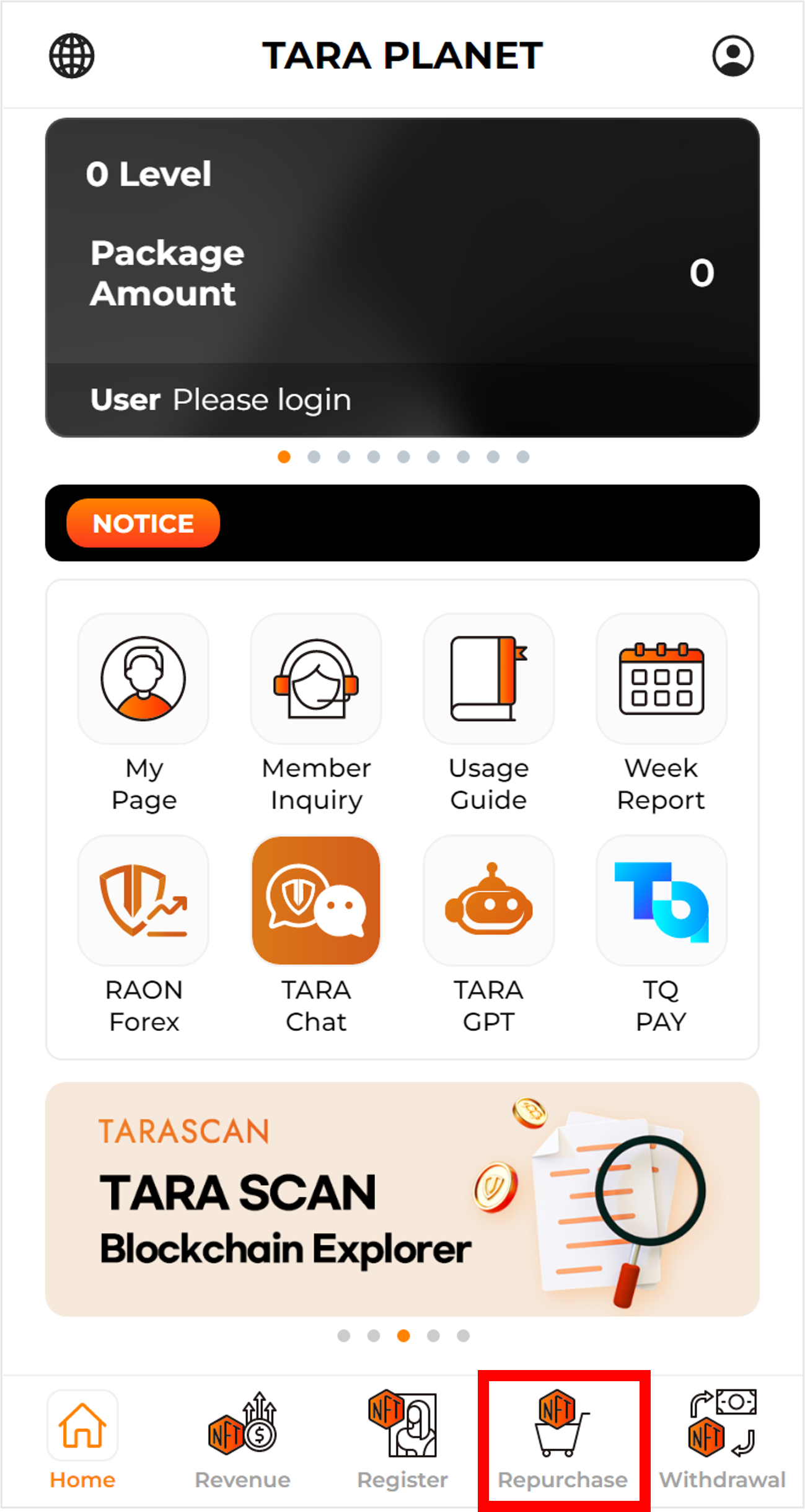
1) Click the Buy icon located on the bottom tab.
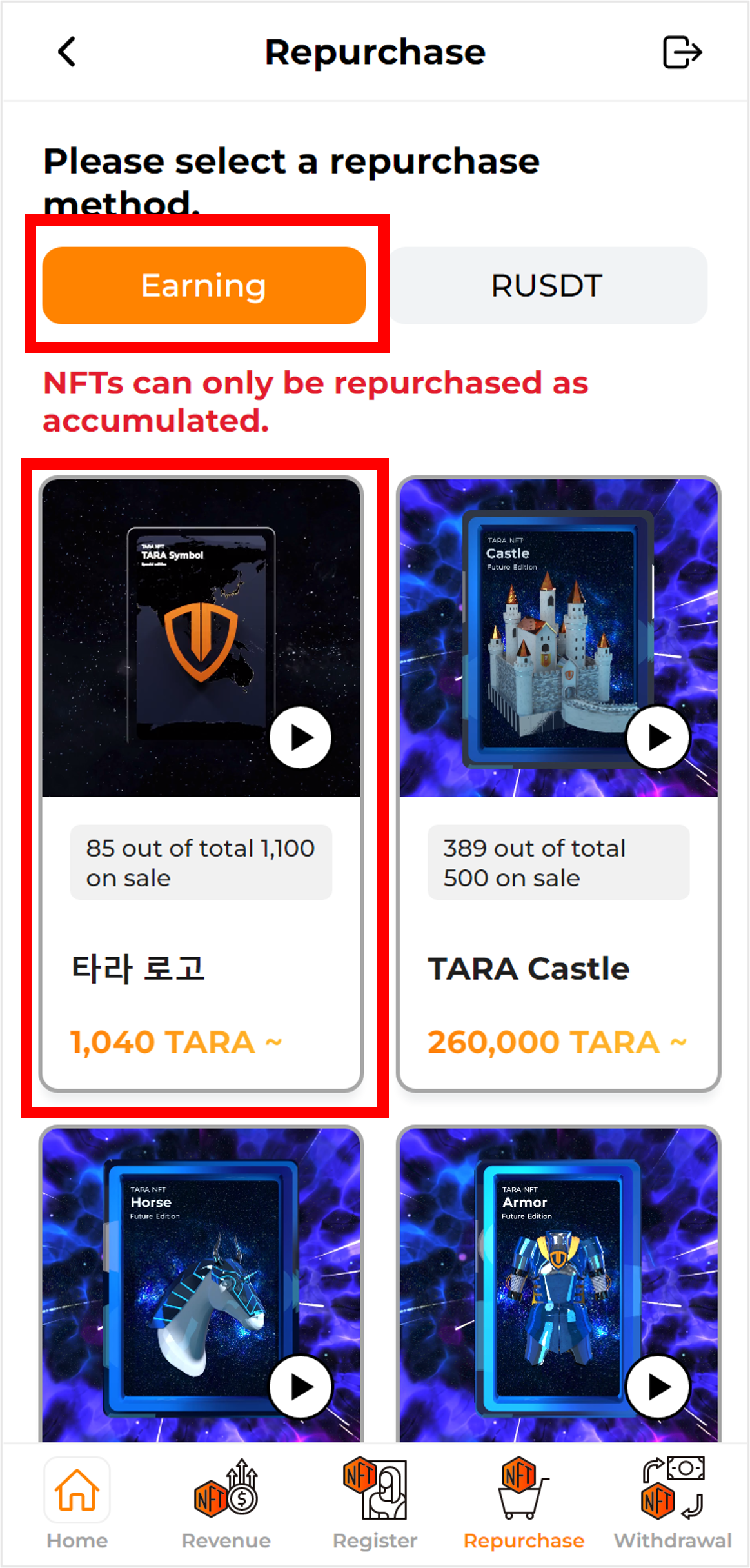
2) After selecting the method to repurchase with Earning, select the NFT to repurchase.
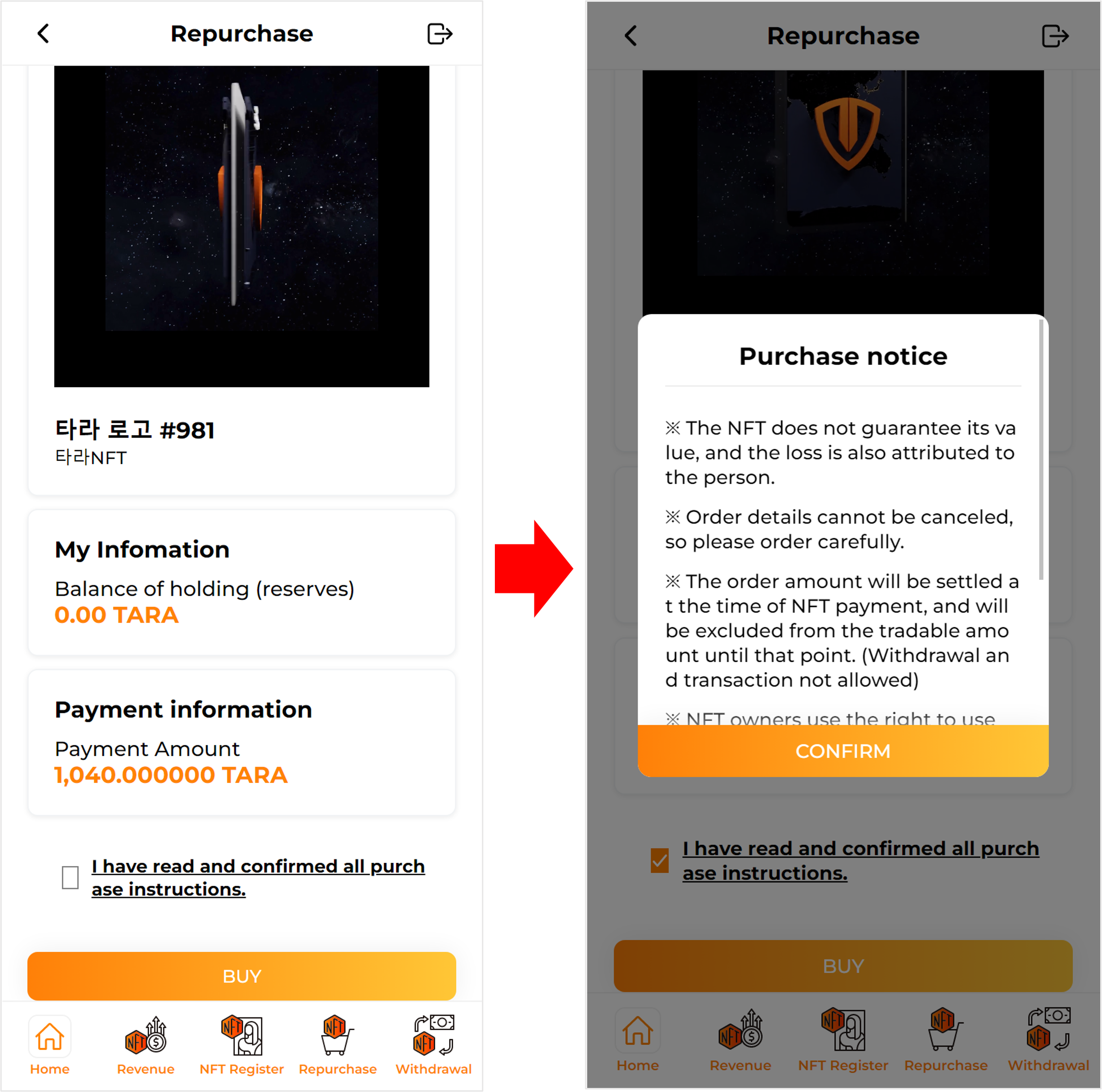
3) You can check the information and balance of the NFT you want to repurchase, You can check the NFT payment amount.
Check the precautions before purchasing Click Buy.
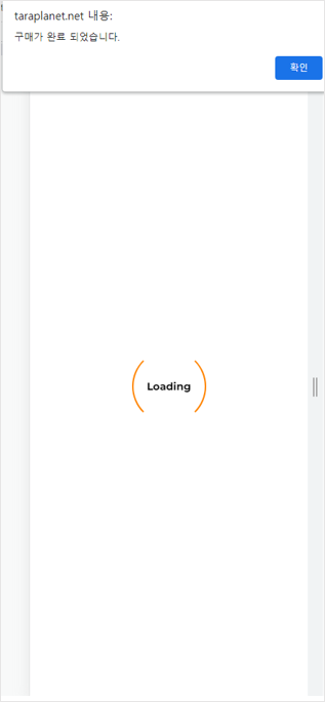
4) When you click Purchase, a loading window is displayed, and it takes some time to purchase. If the purchase is completed normally, the purchase is complete. You can check the phrase.
Q) How do I Buy NFT?
1) Click the Buy icon located on the bottom tab.
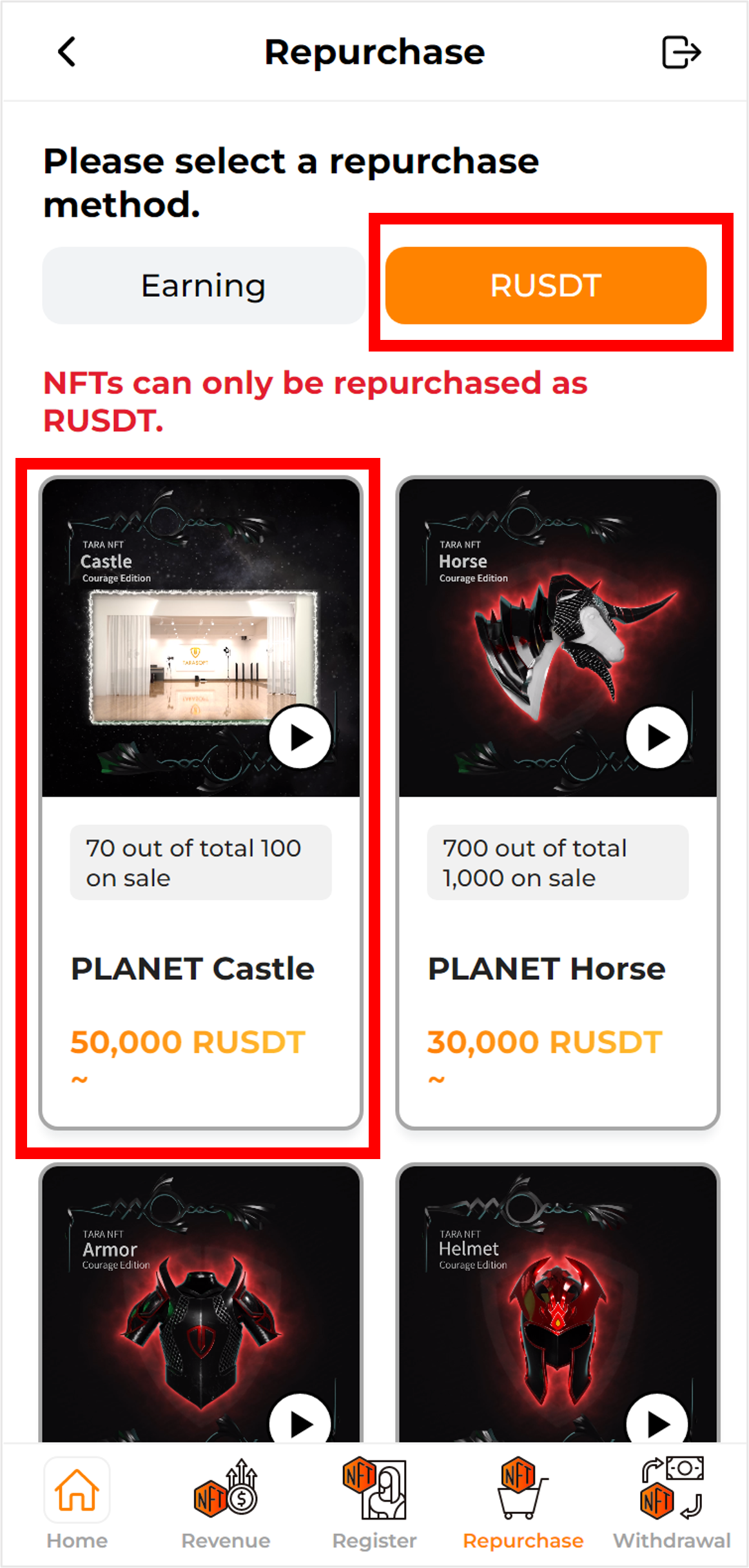
2) After selecting the method to repurchase with RUSDT, select the NFT to repurchase.
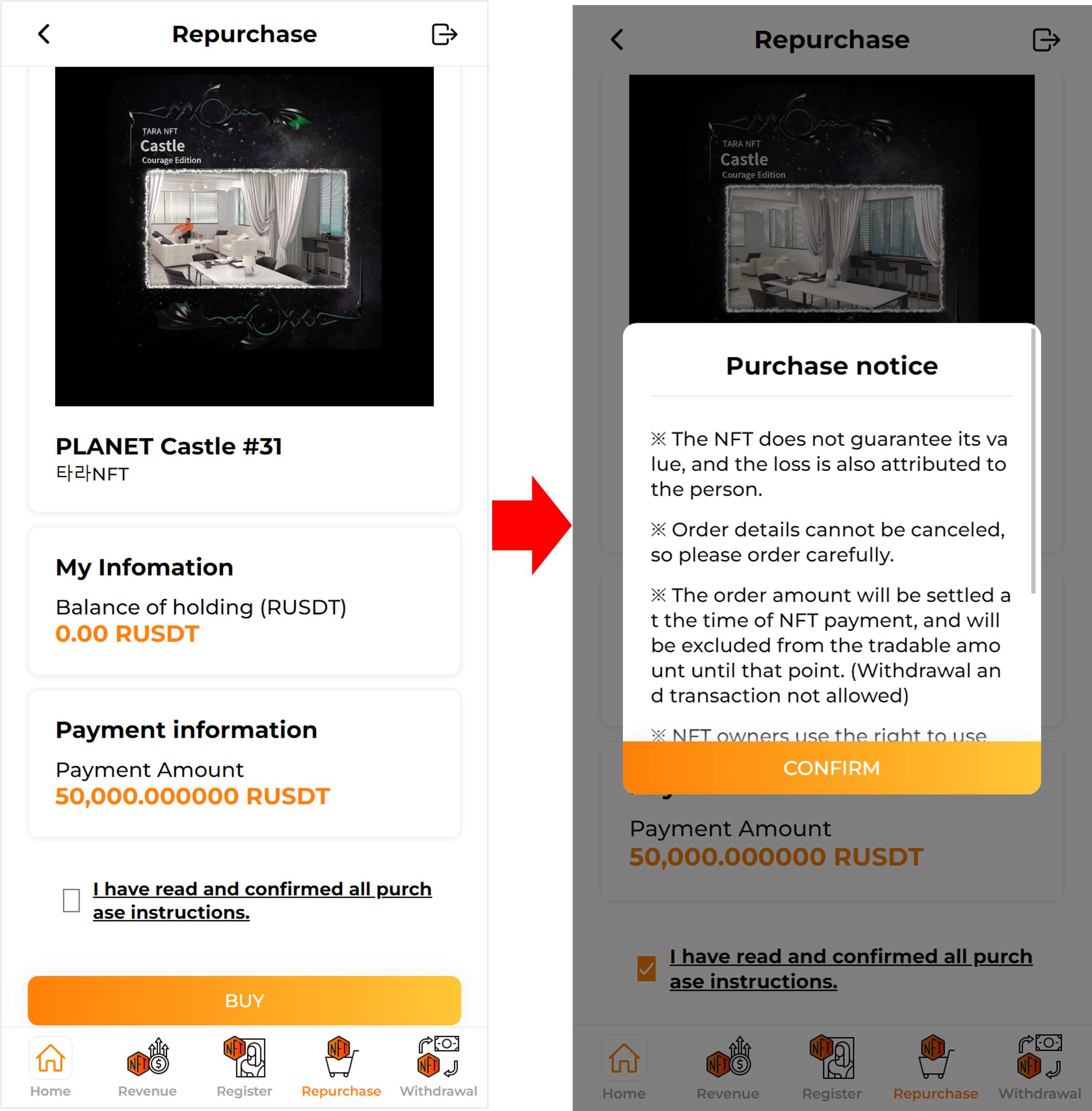
3) You can check the information and balance of the NFT you want to repurchase, You can check the NFT payment amount.
Check the precautions before purchasing Click Buy.
4) When you click Purchase, a loading window is displayed, and it takes some time to purchase. If the purchase is completed normally, the purchase is complete. You can check the phrase.
Q) How do I withdraw to TARA?
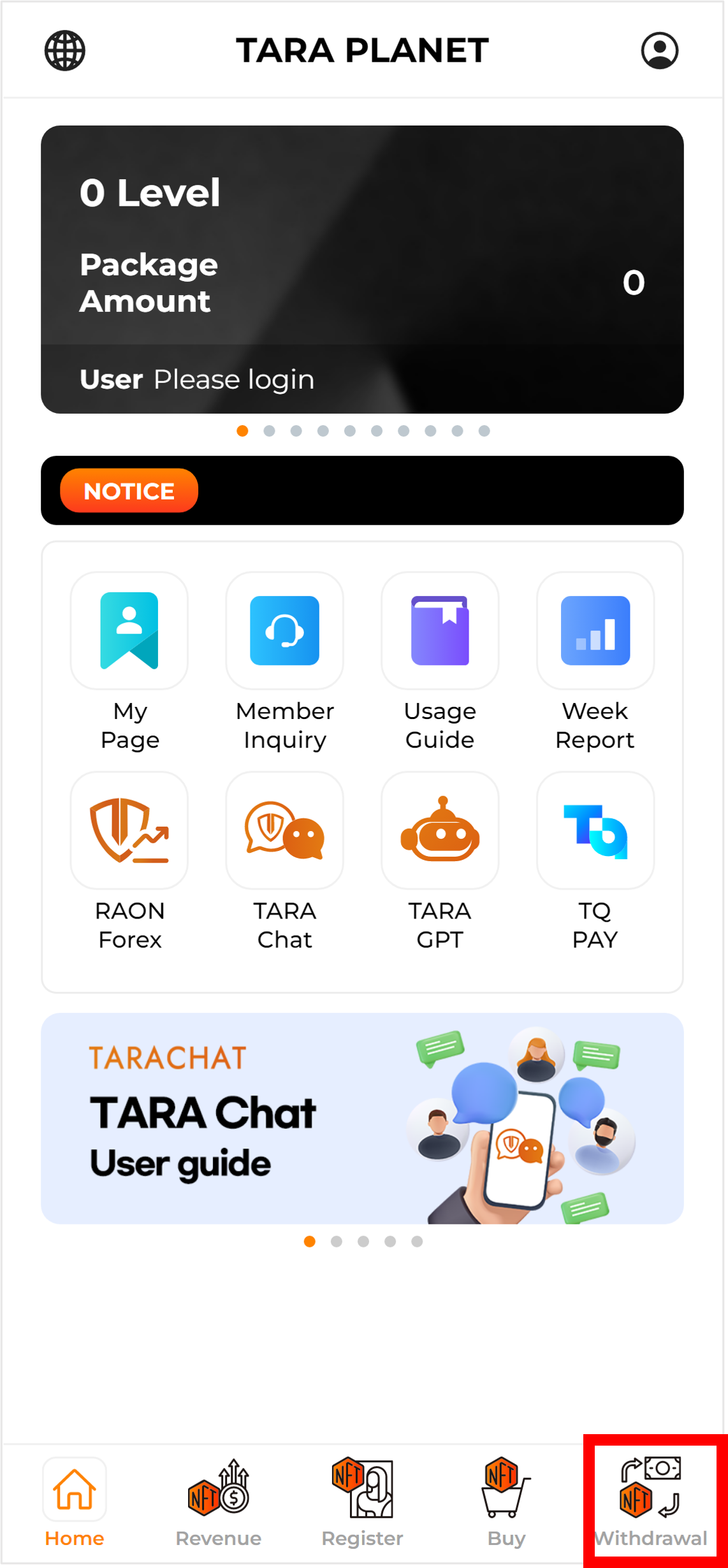
1) Click the withdrawal icon located on the bottom tab.
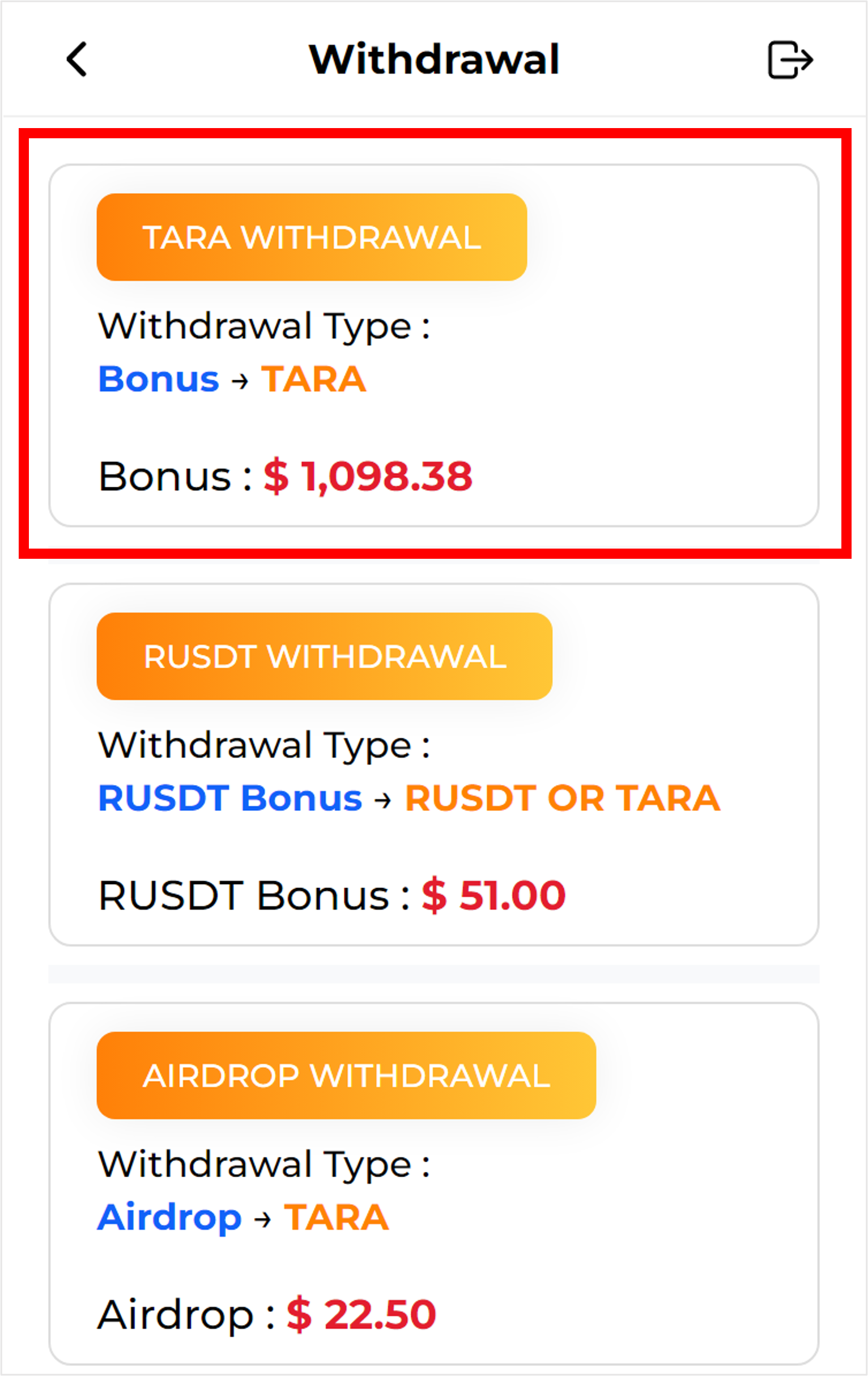
2) Select Withdrawal to TARA from the withdrawal list.
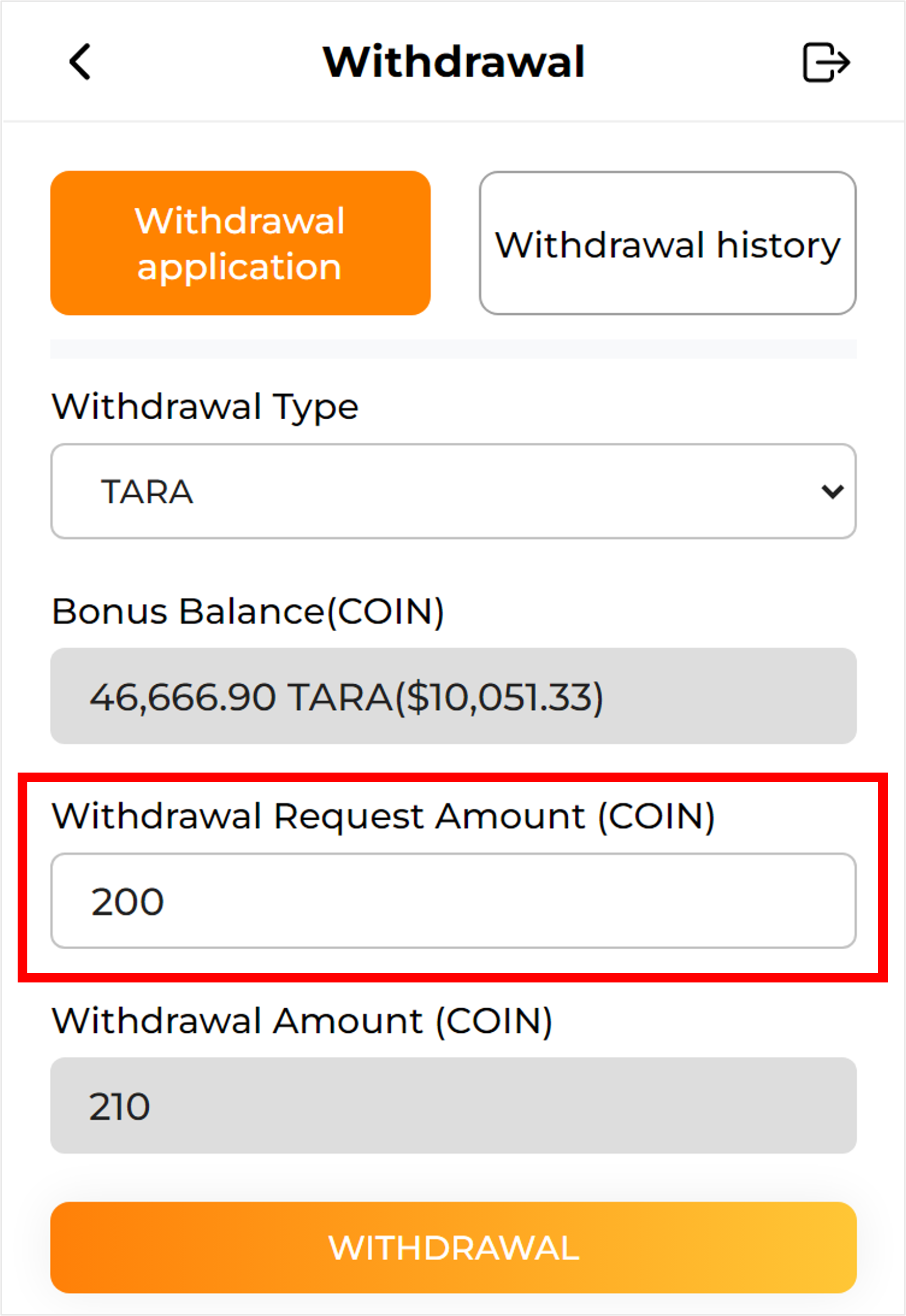
3) The withdrawal request amount can be entered from at least 200 TARA.
If you enter the withdrawal request amount, the withdrawal amount is automatically calculated and shown.
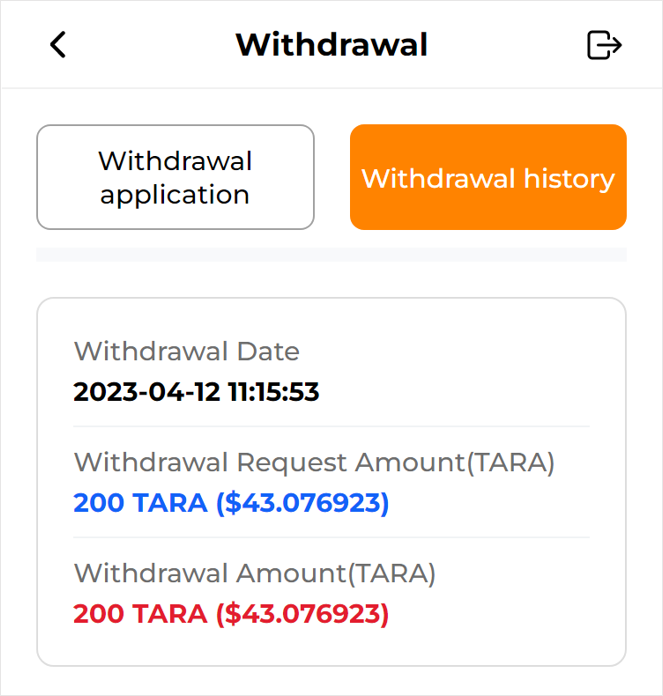
4) If you want to check the details of your withdrawal application, click the withdrawal details above to check the withdrawal date, withdrawal request amount, and withdrawal amount.
Q) How do I transfer TARA coins?
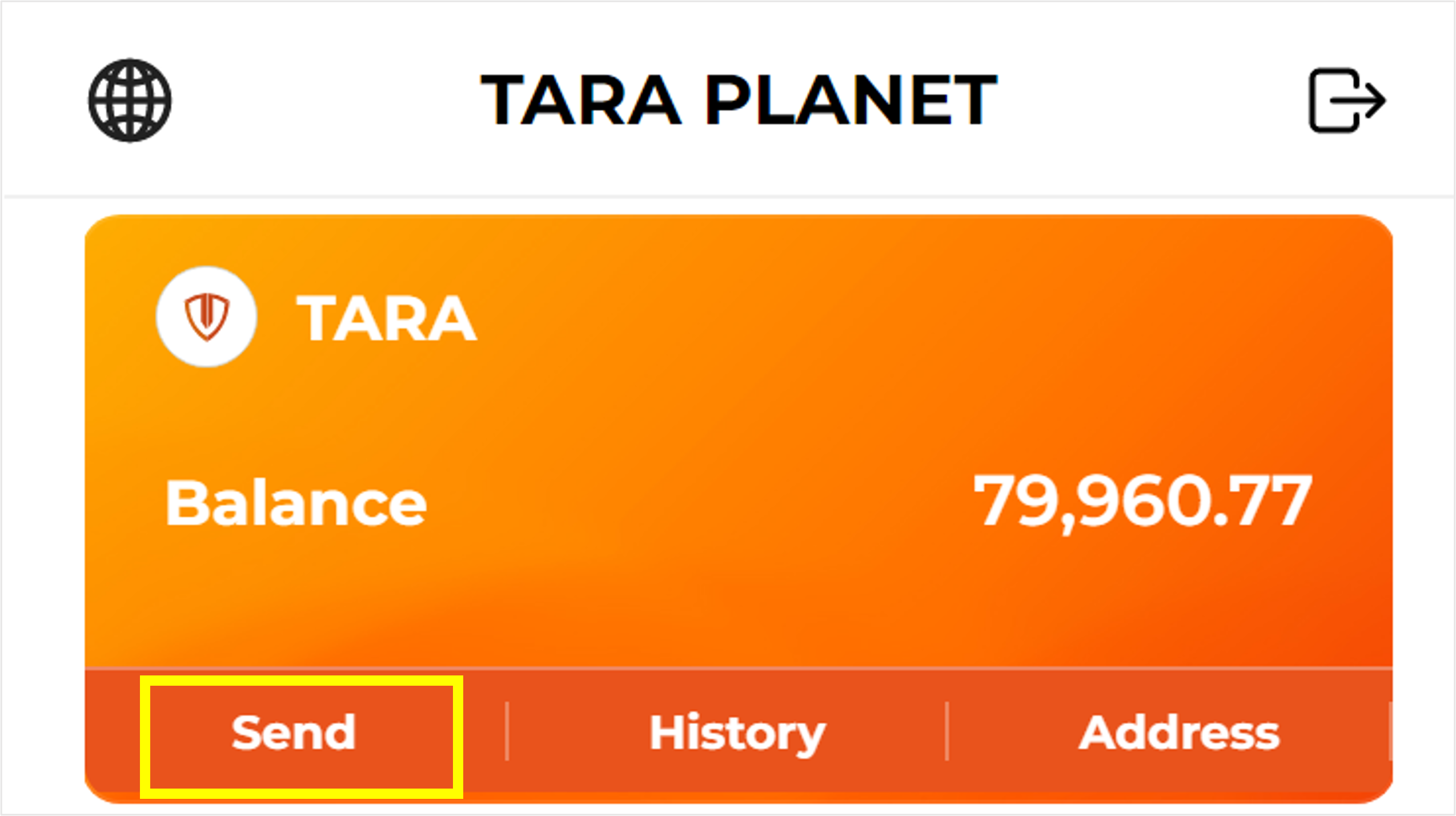
1) Click send on the TARA card in the upper card area.
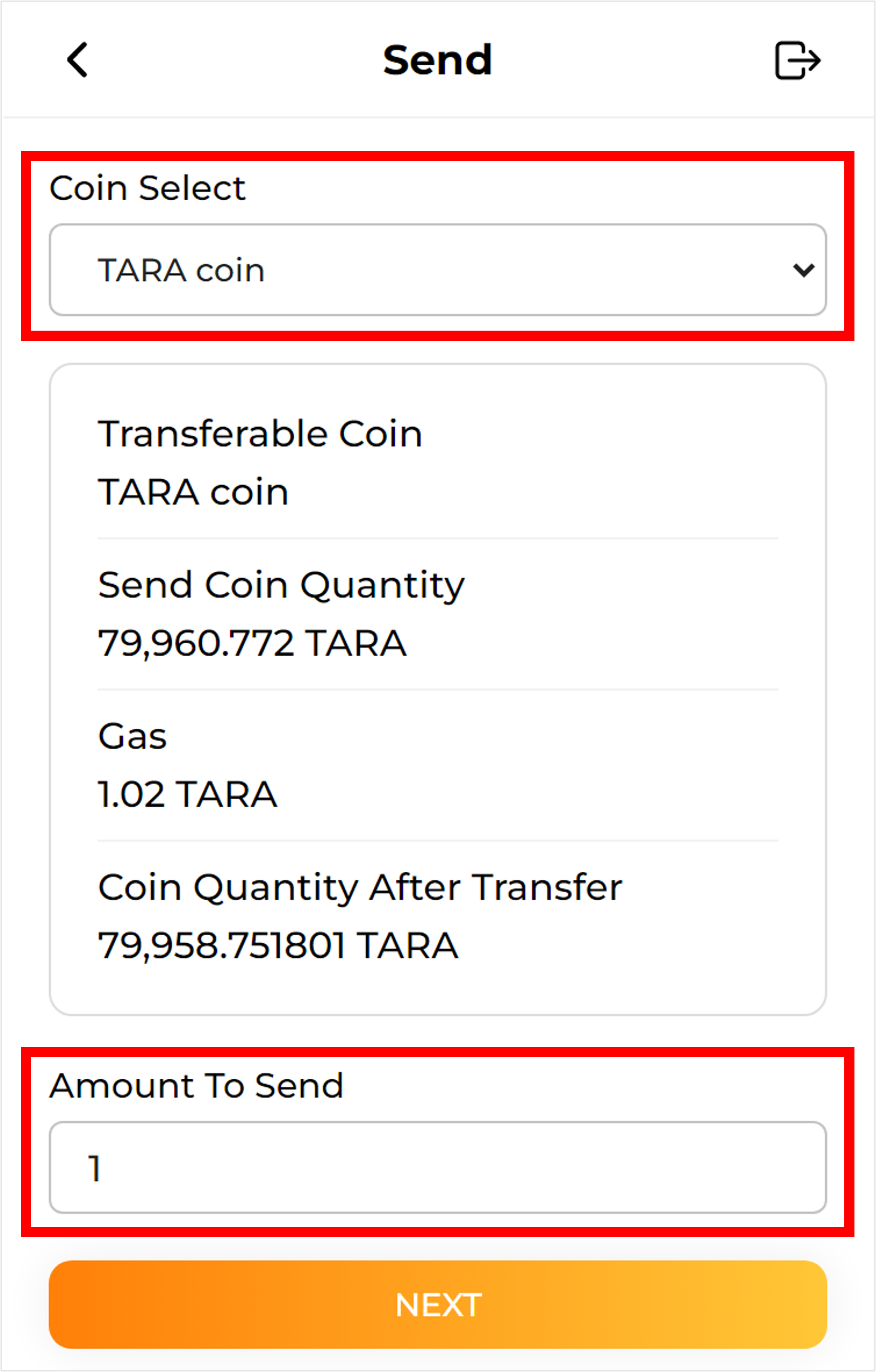
2) Select the type of coin you want to transfer and enter the amount you want to transfer.
(If there is no amount of coins that can be transferred, it cannot be transferred.)
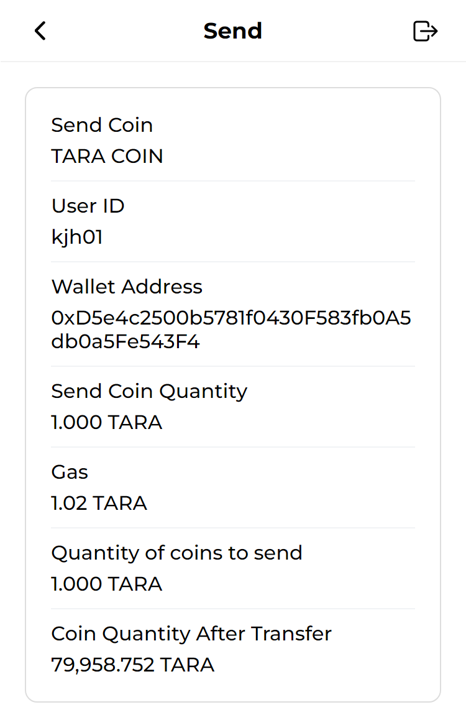
3) Check the type and amount of coins you want to send.
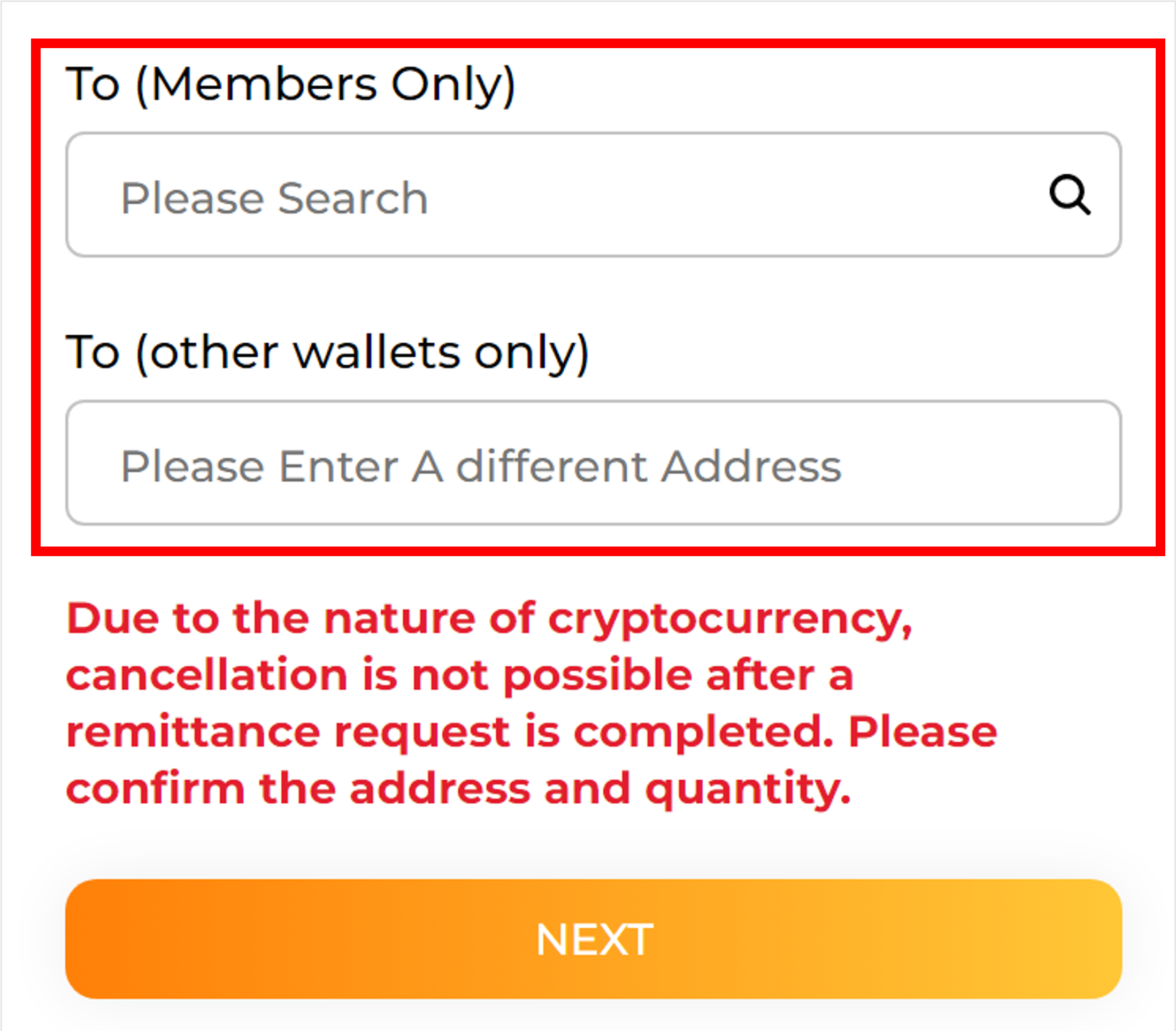
4) Please enter your ID and address on Members Only if you want to trade with TARA PLANET members, or enter your other wallet address information on other walls only if you want to trade with TARA Wallet wallet.
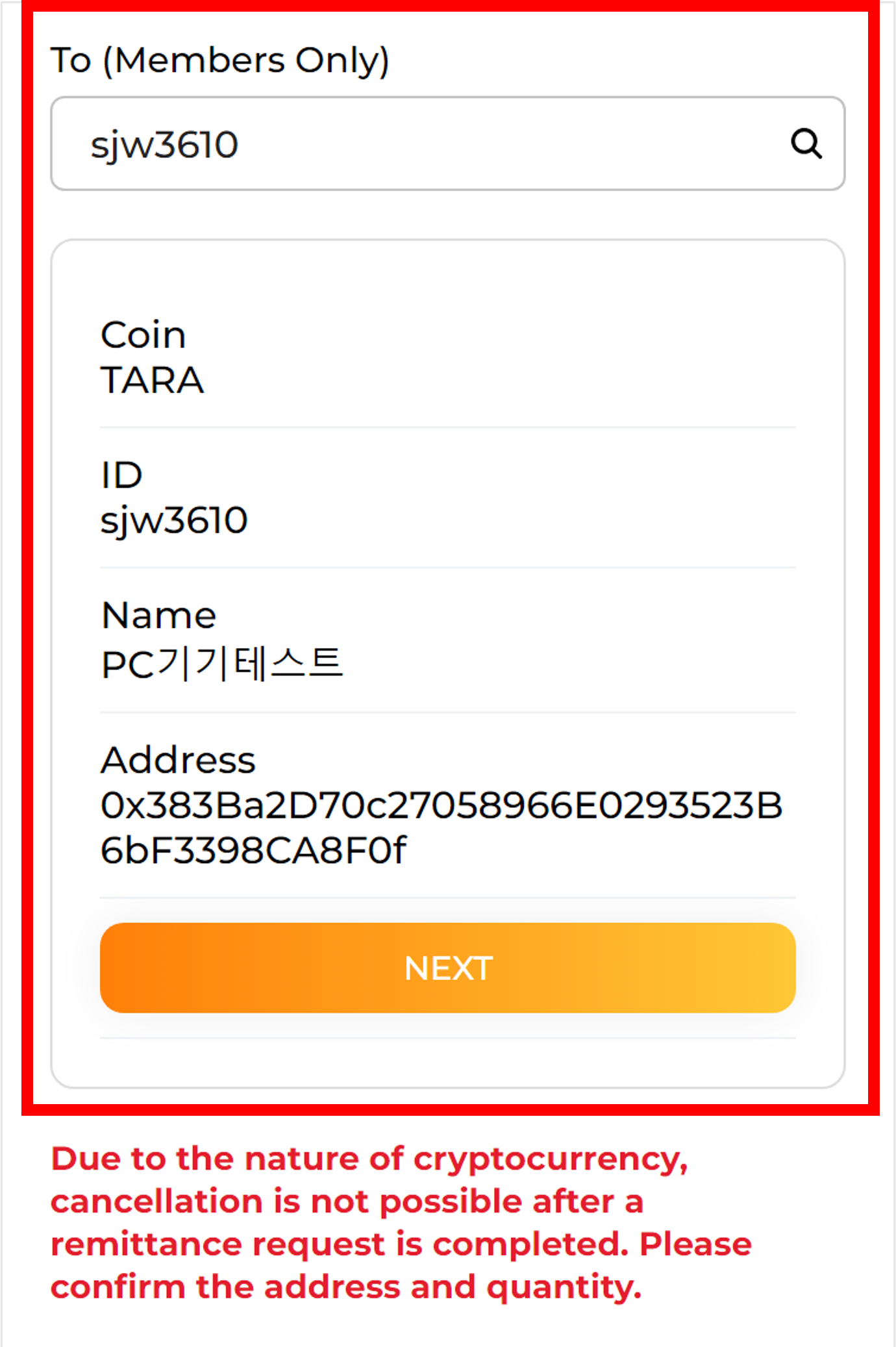
5) If you enter your ID, the recipient's information You can check it out.
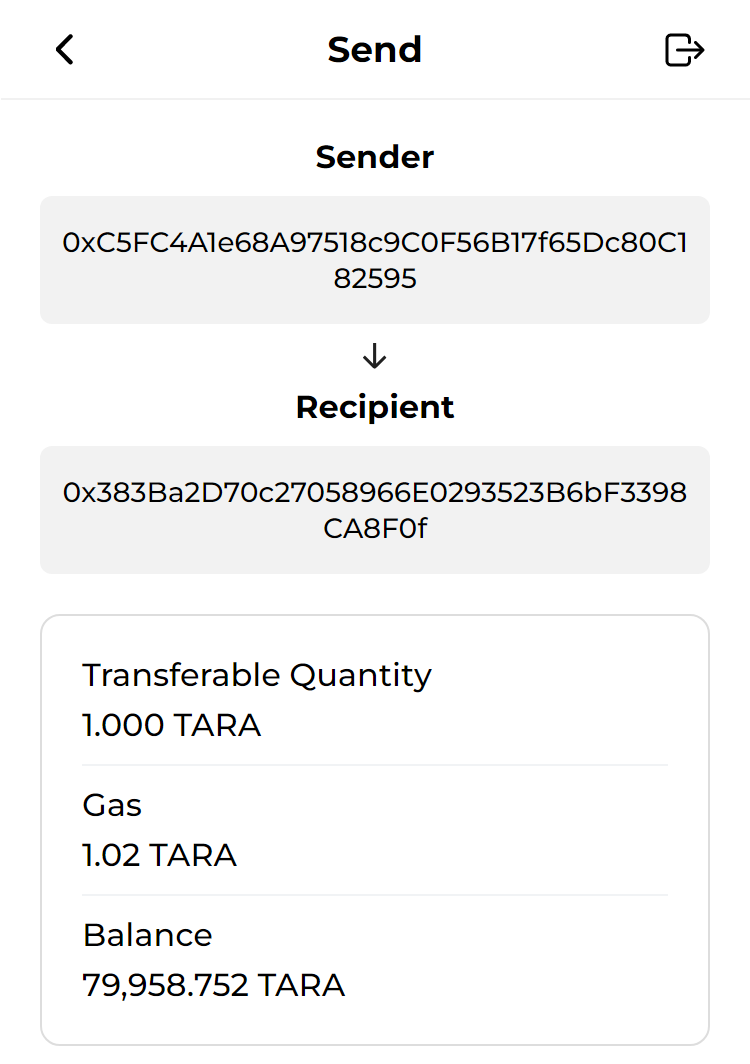
6) Before sending, send the sender and recipient's information You can check it out.
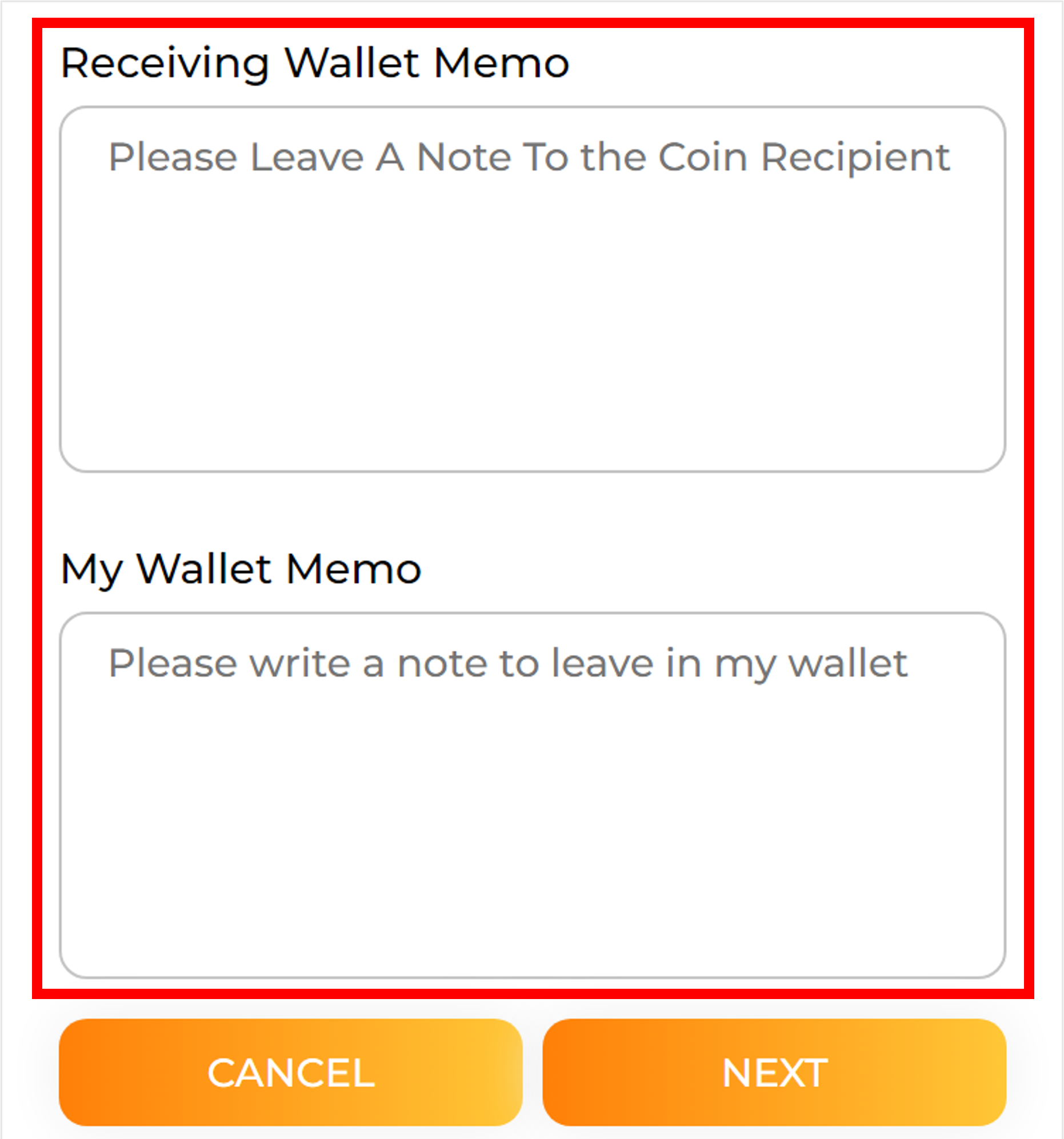
7) Receiving Wallet Memo is the part where I write what I want to deliver to the sender.
My Wallet Memo is a memo that only I can see.
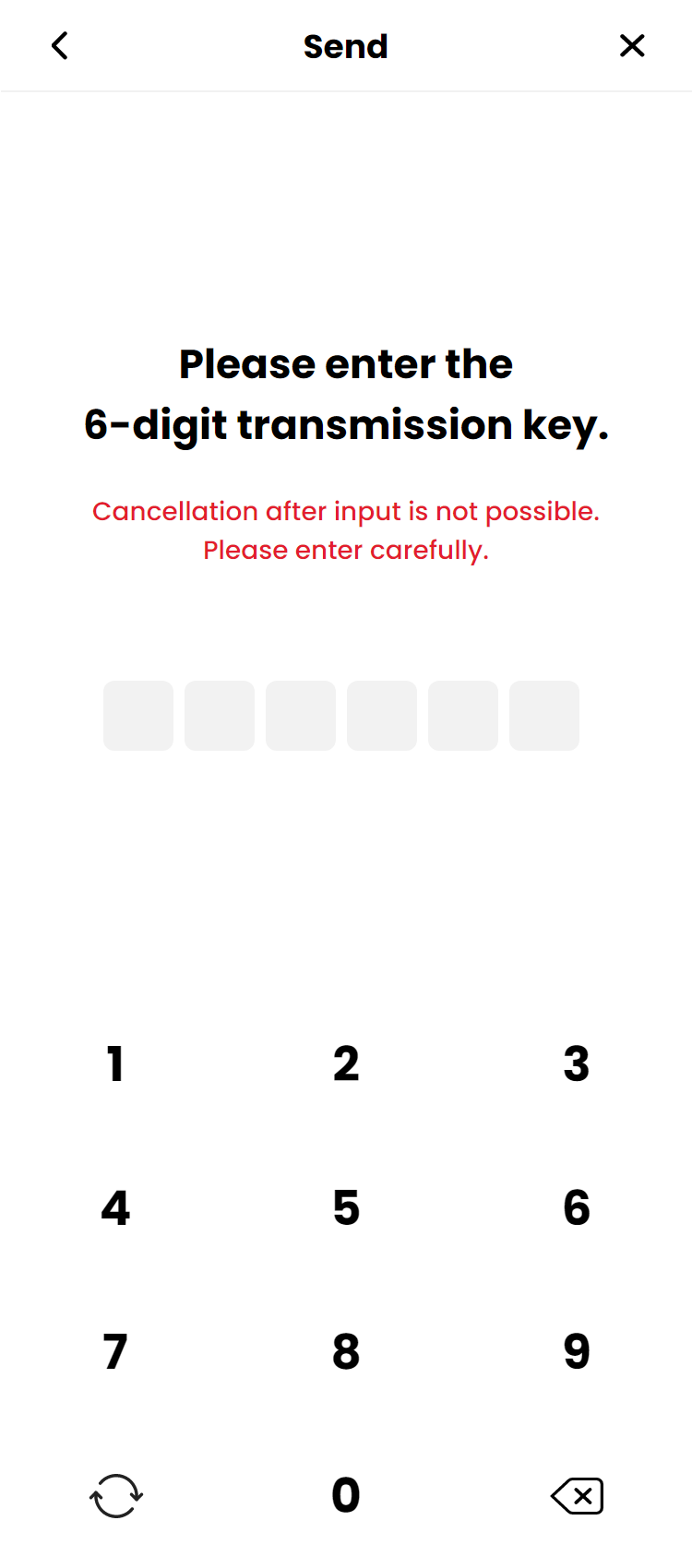
8) Please enter the 6 digits of the registered transfer key.

9) After entering the password, it takes time to send it, If the password is entered normally and the transfer is complete, Coin transfer completed. That's what you'll see.
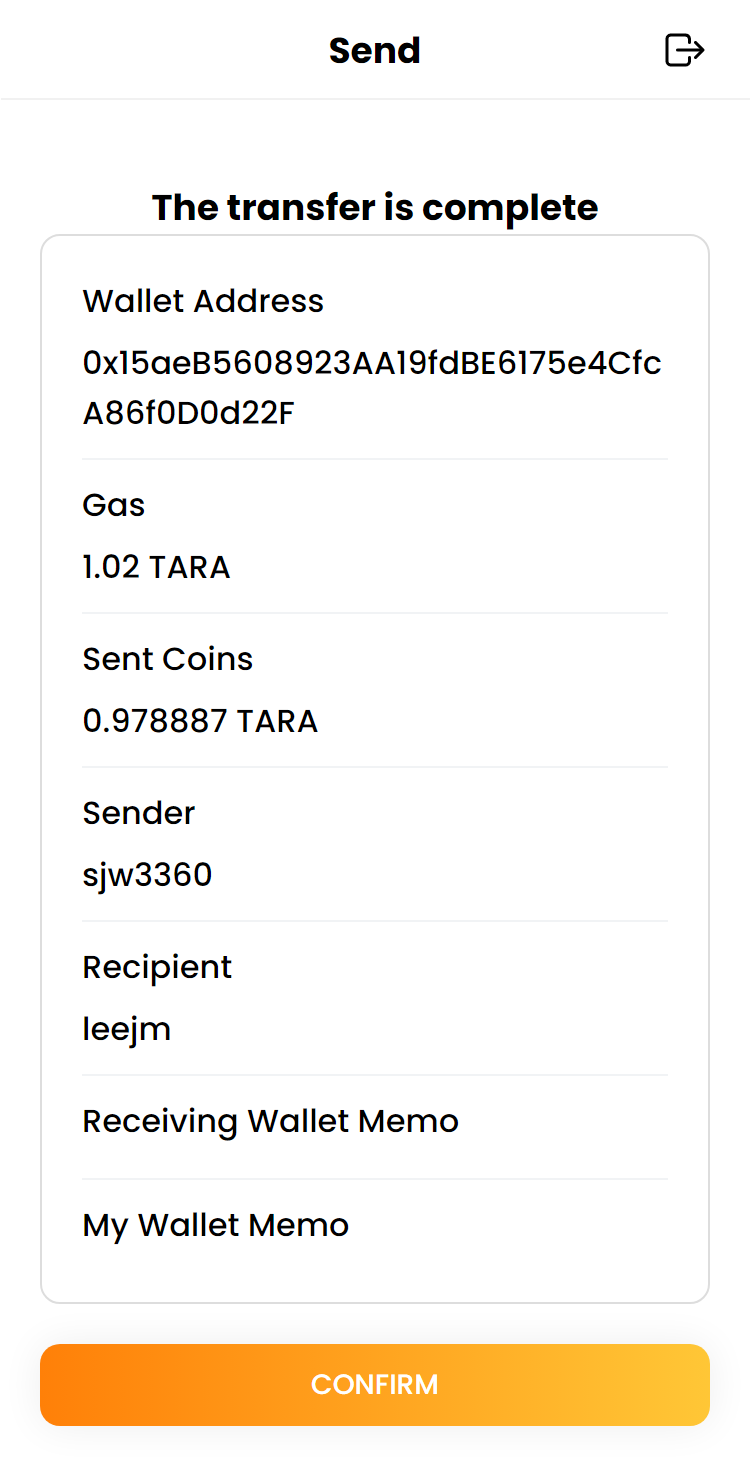
10) If the coin was traded normally, You can check the transmission completion history.
Q) Where can I check the details of the TARA coin transfer?
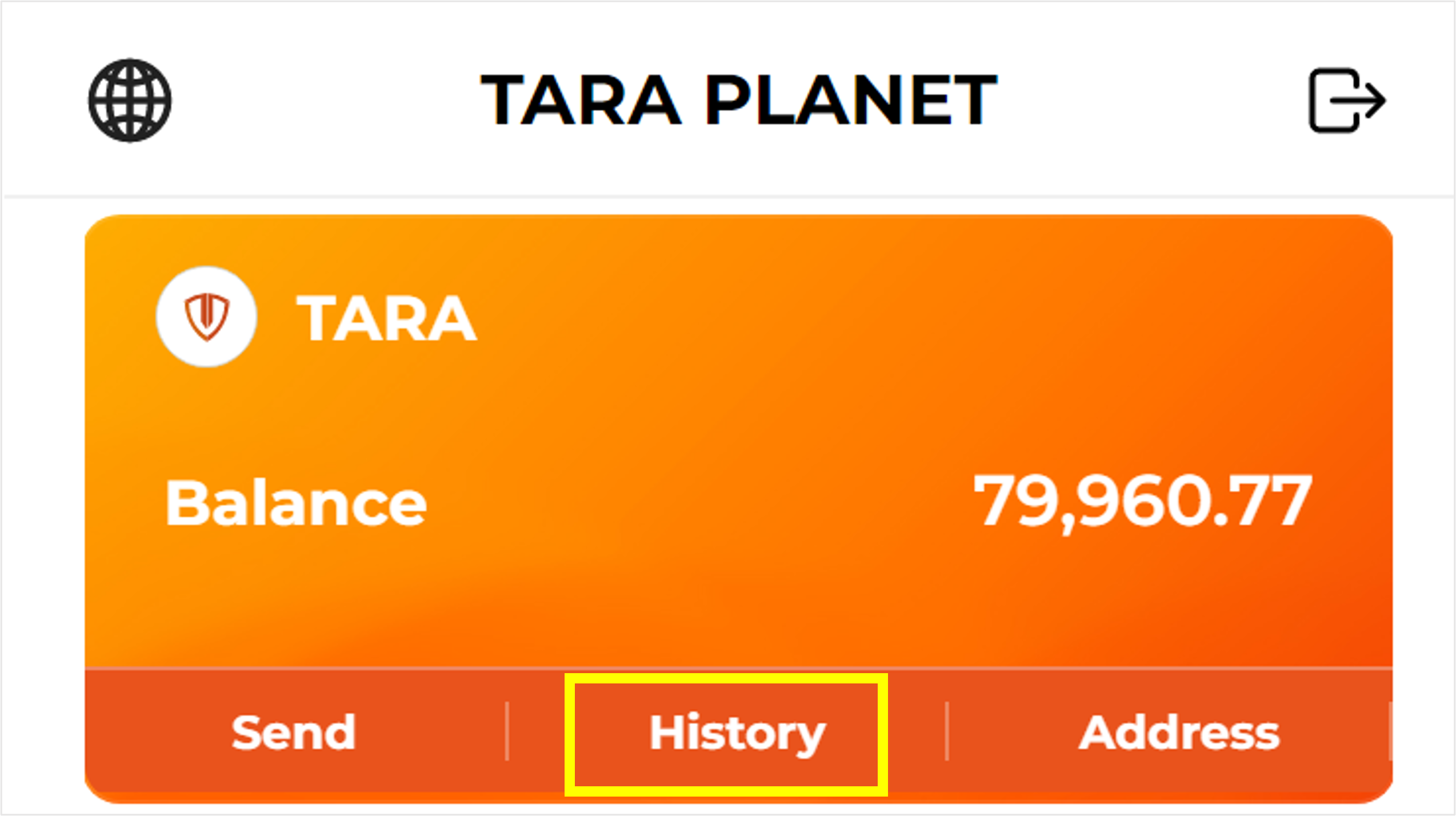
1) Click Transaction Details on the TARA card in the upper card area.
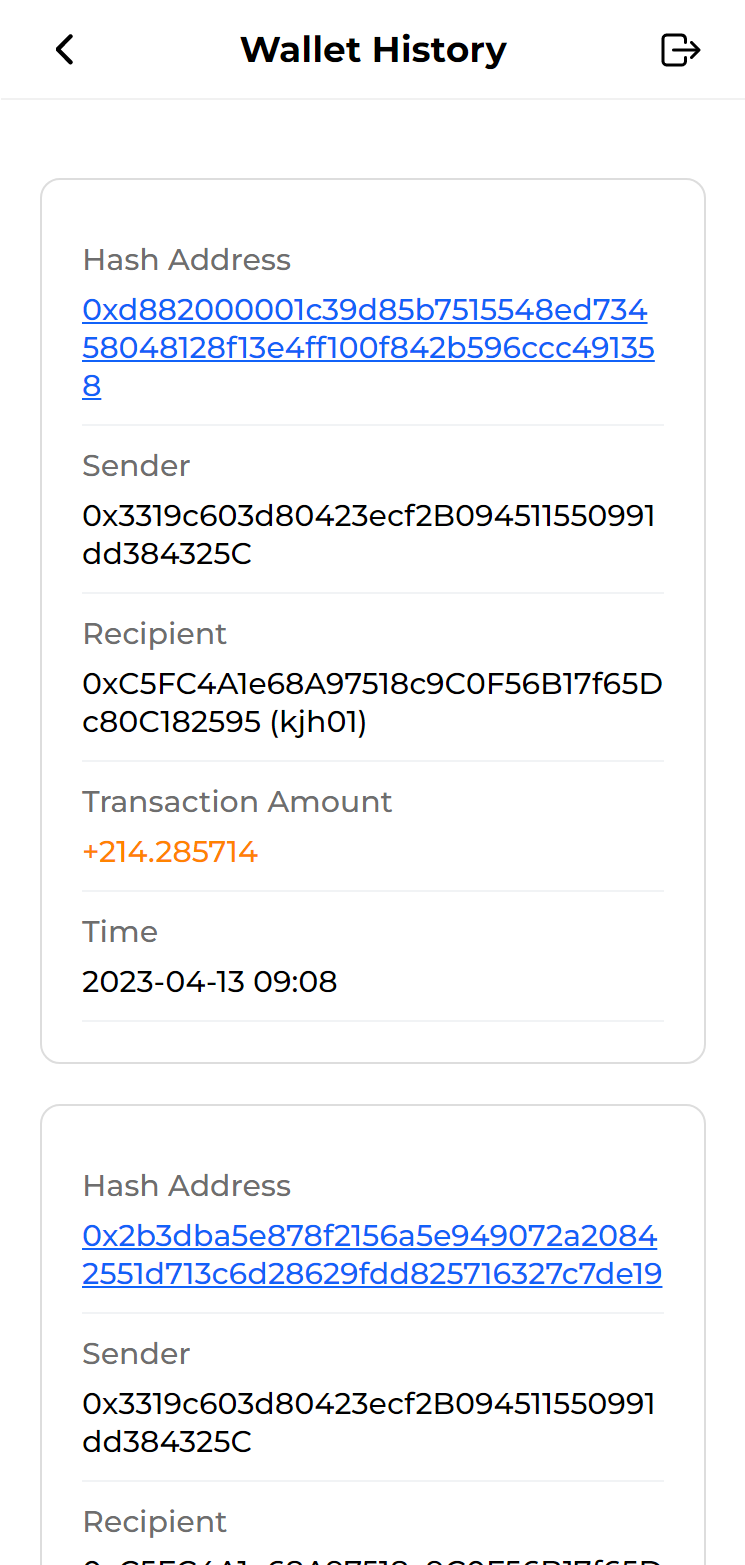
2) You can check the date, time, and amount of the transaction.

3) When you click on a hash address, you can go to tarascan, You can check the details and the transaction status.
Q) How do I transfer RUSDT coins?
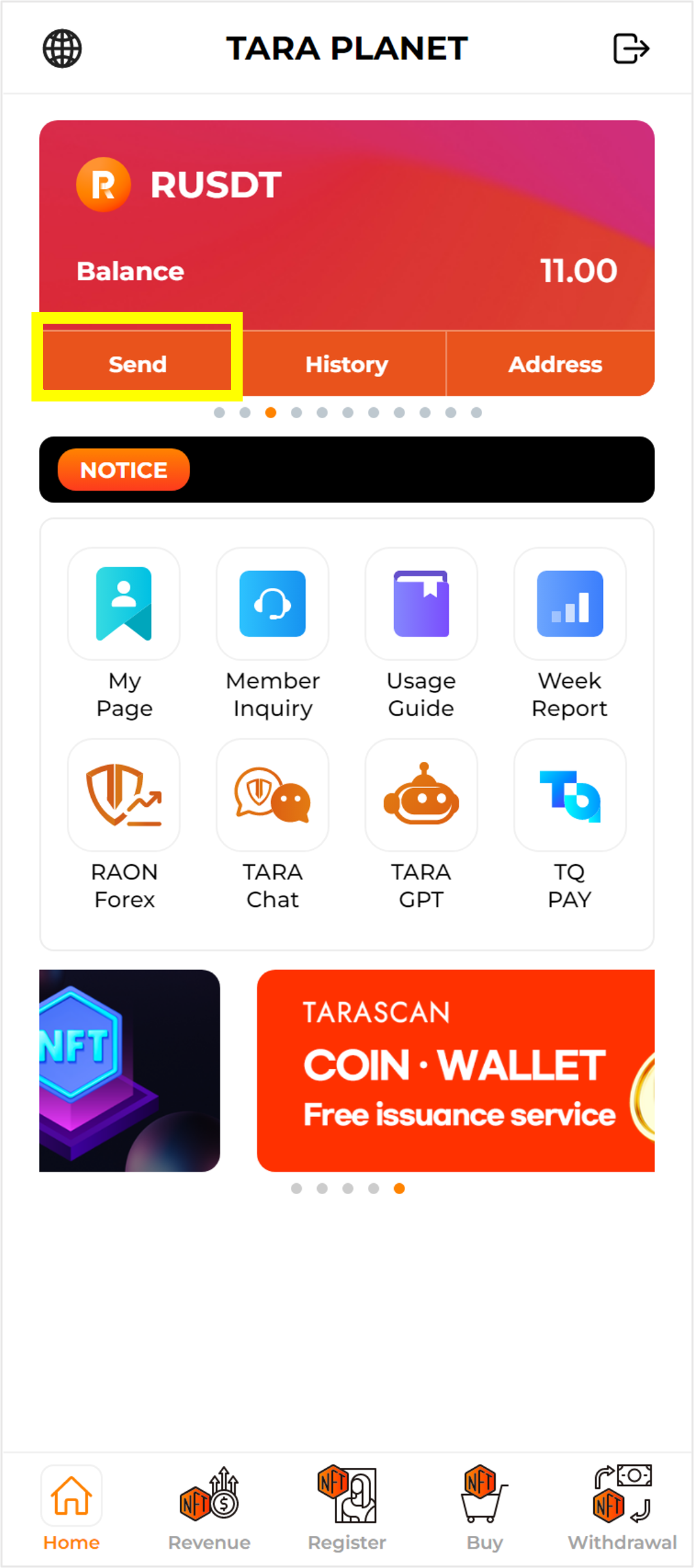
1) Click SEND on the RUSDT card in the upper card area.
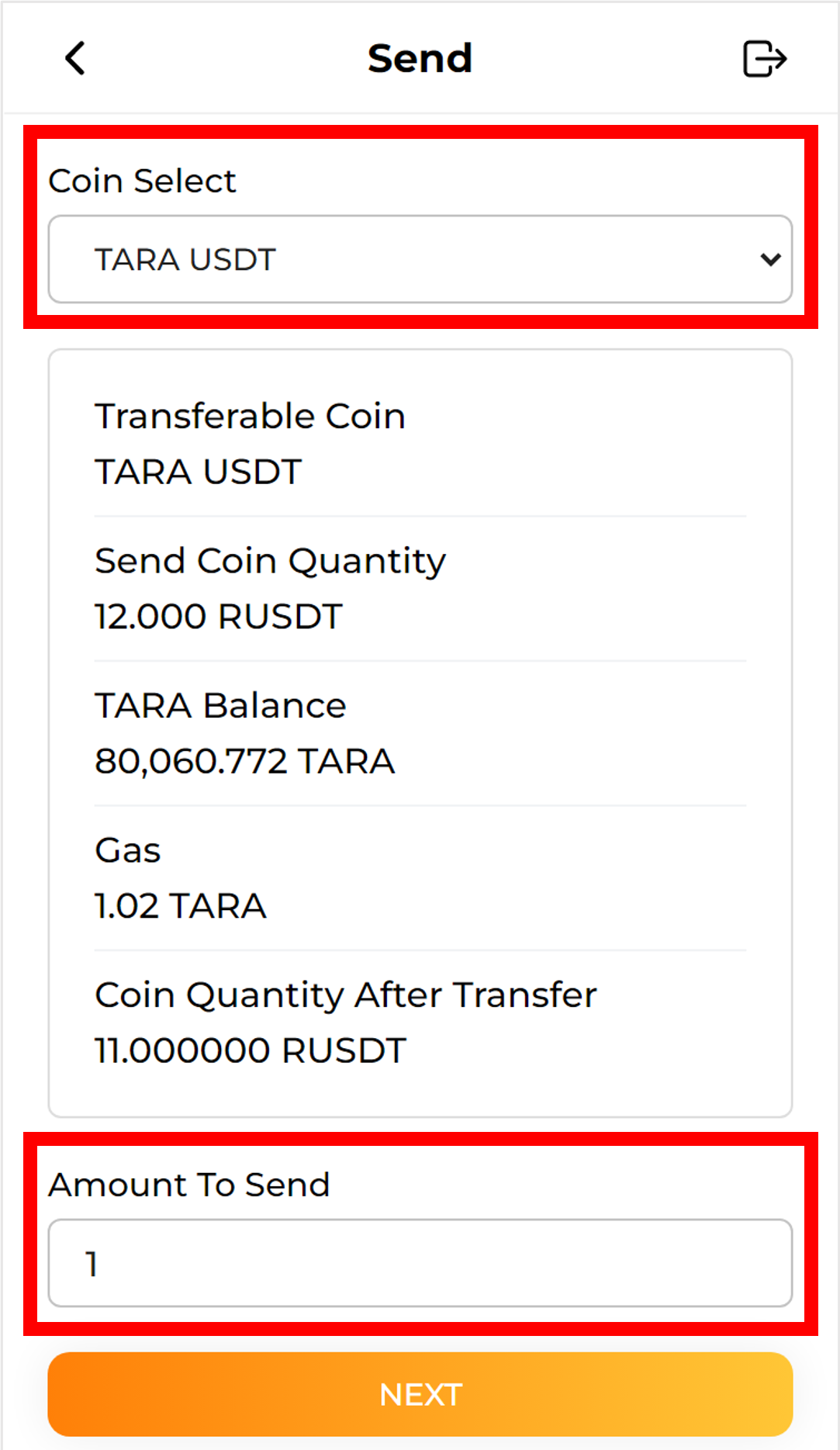
2) Select the type of coin you want to transfer and enter the amount you want to transfer.
(If there is no amount of coins that can be transferred, it cannot be transferred.)
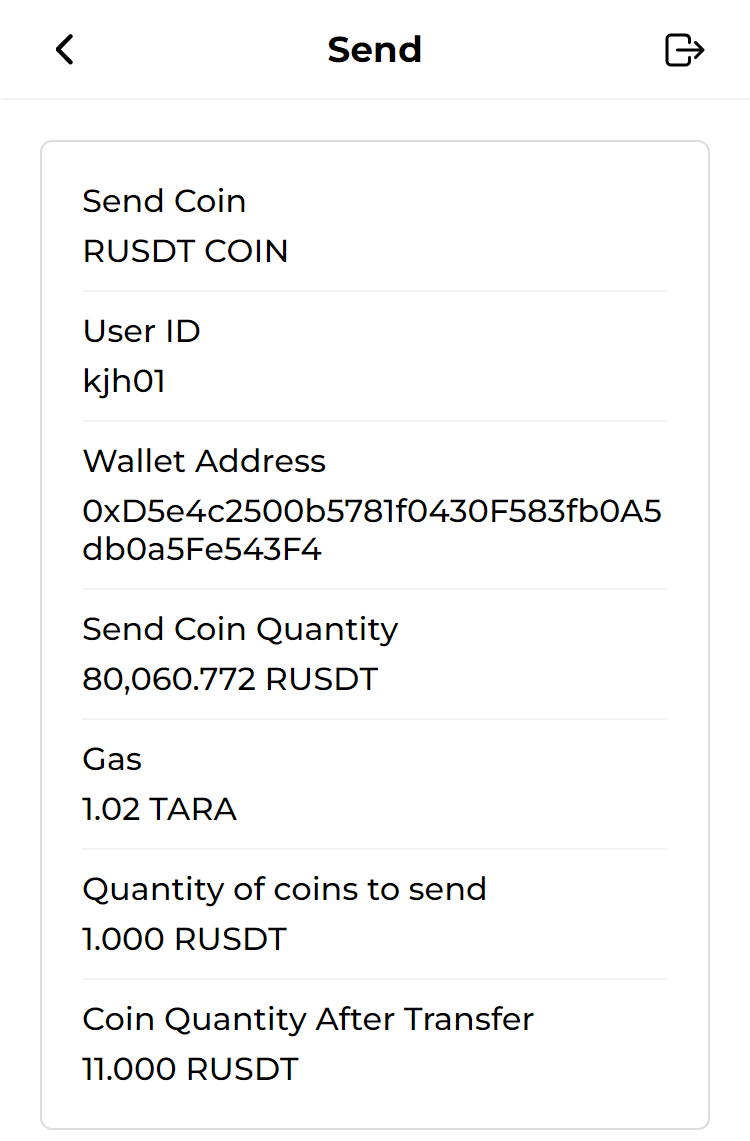
3) Check the type and amount of coins you want to send.
4) Please enter your ID and address on Members Only if you want to trade with TARA PLANET members, or enter your other wallet address information on other walls only if you want to trade with TARA Wallet wallet.

5) If you enter your ID, the recipient's information You can check it out.
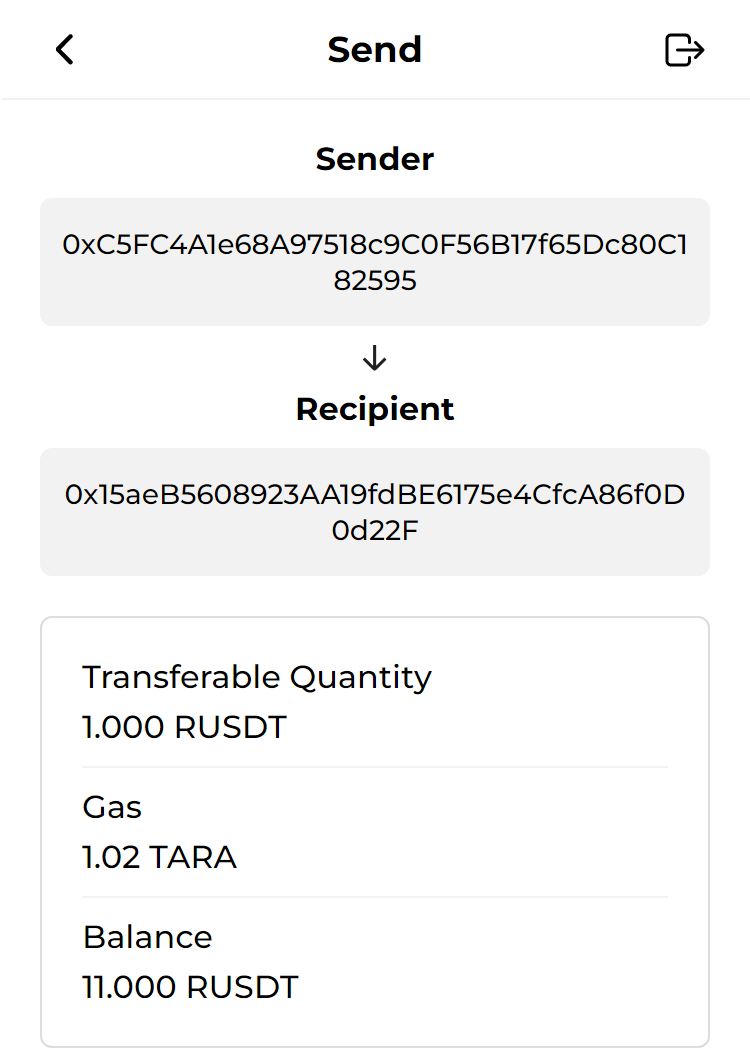
6) Before sending, send the sender and recipient's information You can check it out.
7) Receiving Wallet Memo is the part where I write what I want to deliver to the sender.
My Wallet Memo is a memo that only I can see.
8) Please enter the 6 digits of the registered transfer key.
9) After entering the password, it takes time to send it, If the password is entered normally and the transfer is complete, Coin transfer completed. That's what you'll see.
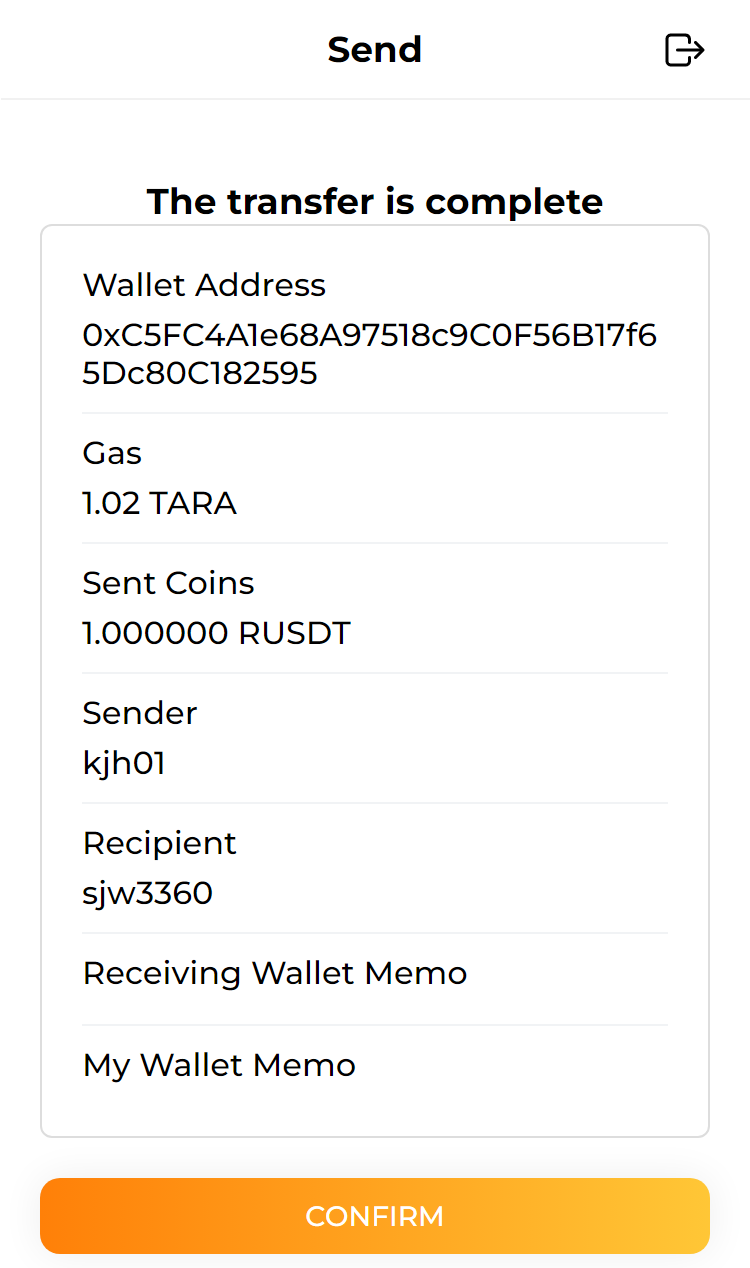
10) If the coin was traded normally, You can check the transmission completion history.
Q) Where can I check the coin transfer history in RUSDT?
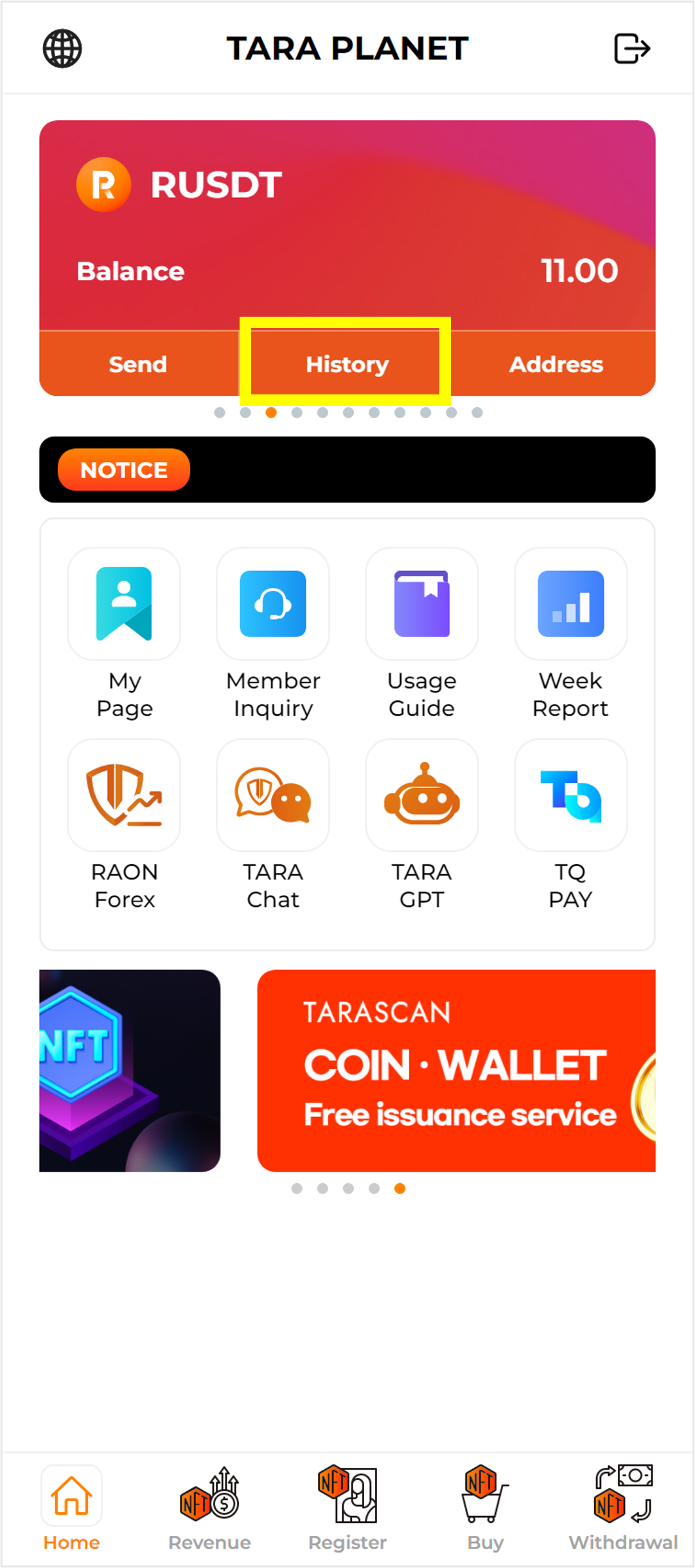
1) Click Transaction Details on the RUSDT card in the card area at the top.
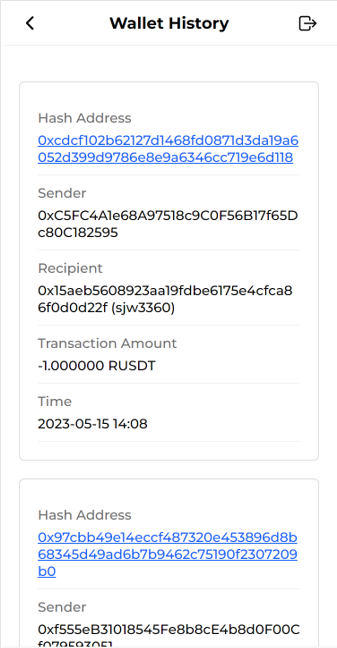
2) You can check the date, time, and amount of the transaction.
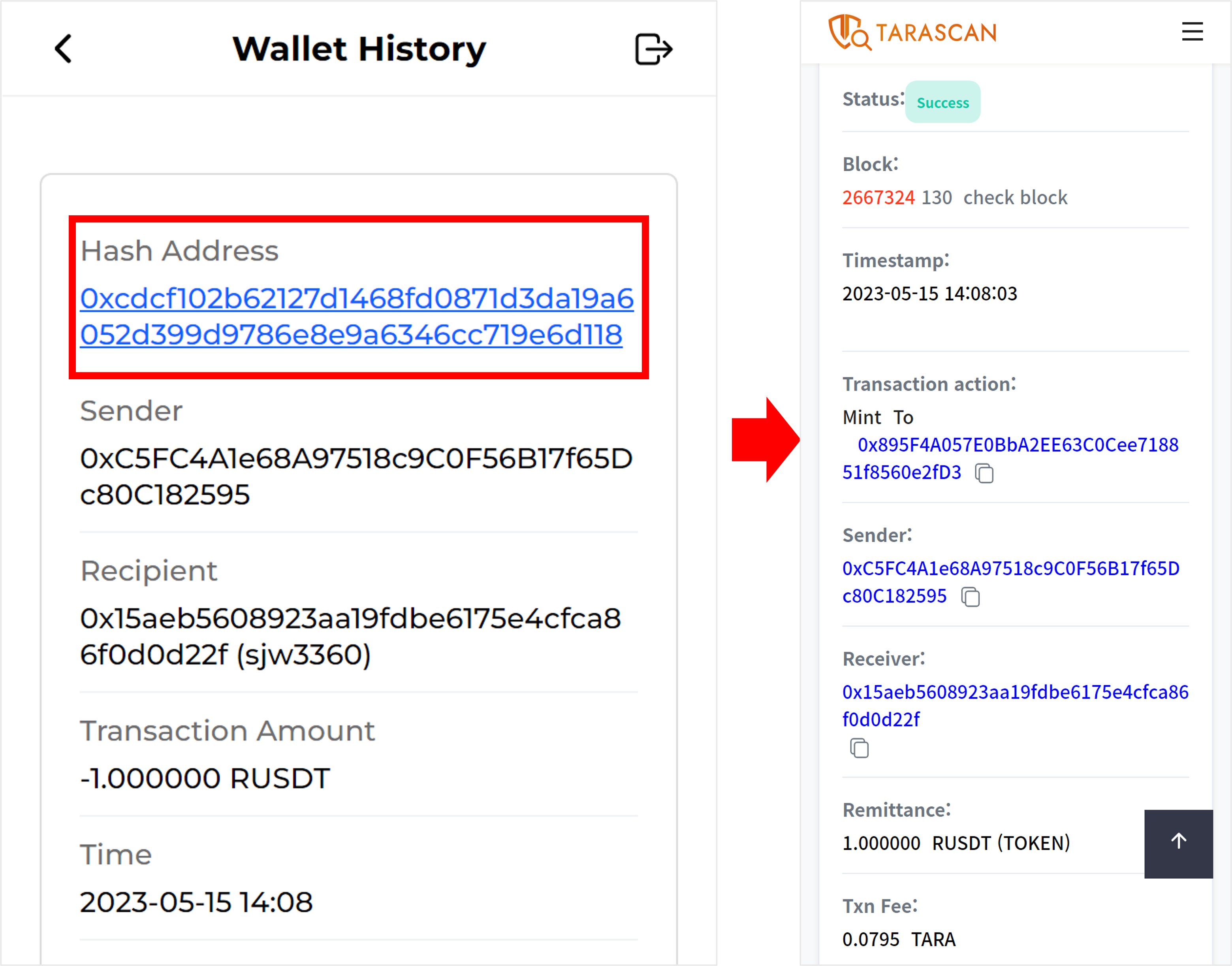
3) When you click on a hash address, you can go to tarascan, You can check the details and the transaction status.

Q) How do I exchange RUSDT with my TQ?
1) Click the withdrawal icon located on the bottom tab.
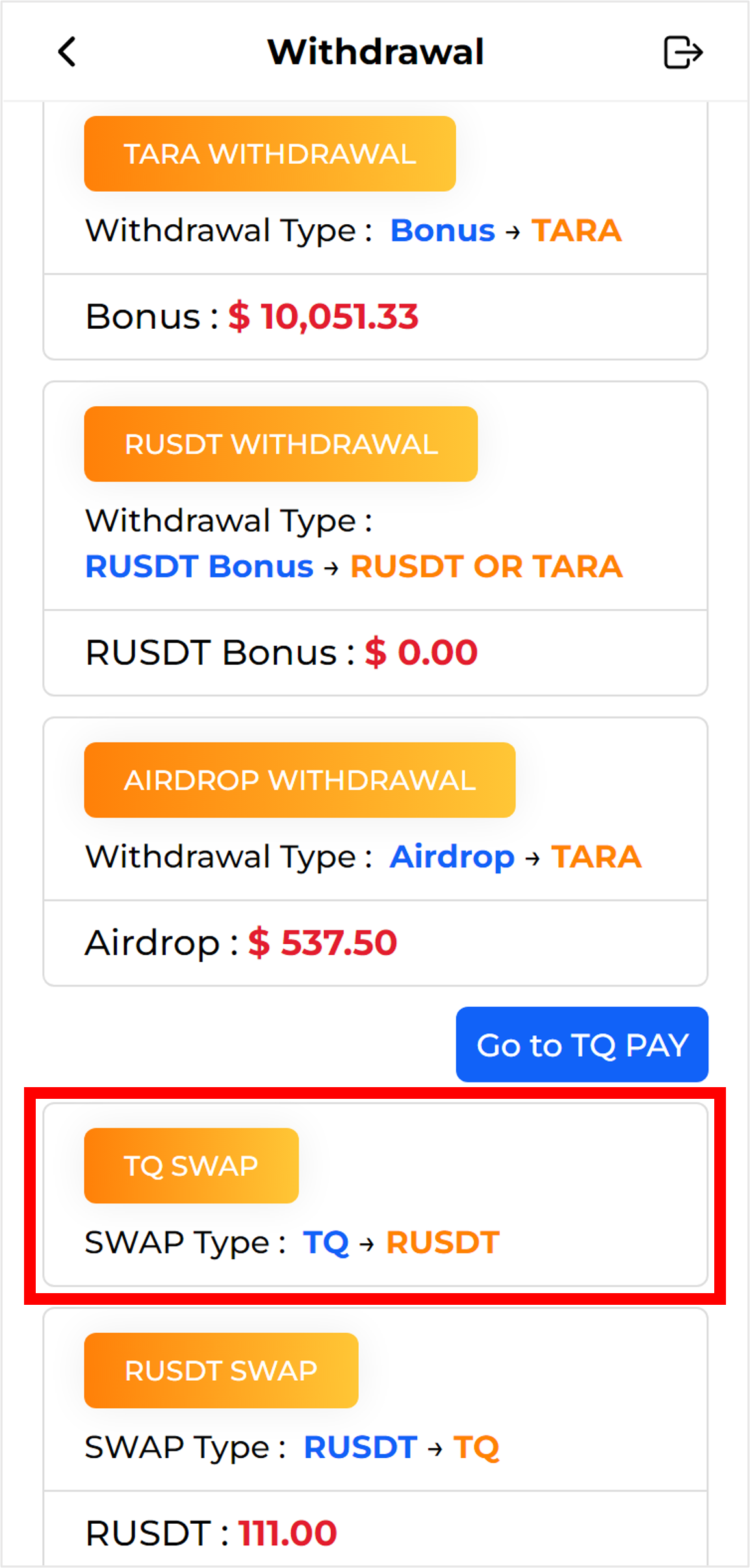
2) In the withdrawal list, click TQ SWAP.
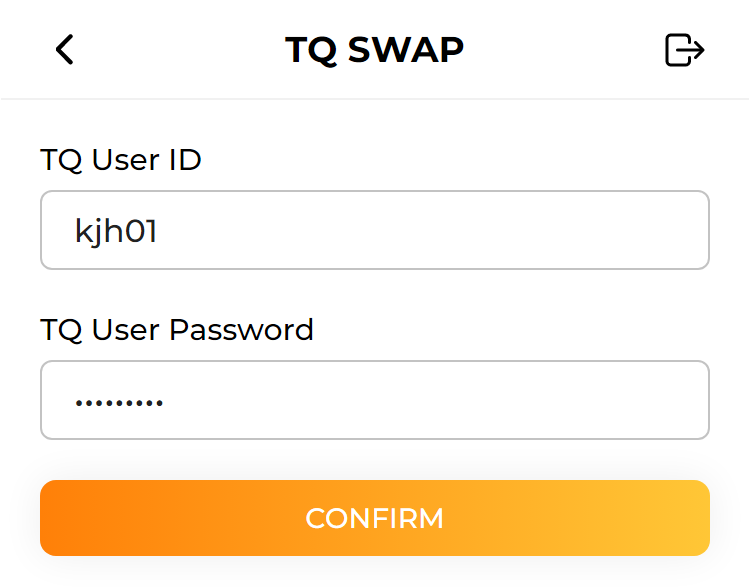
3) Enter the ID and password you registered with TQ PAY.
Go to TQ PAYIf you do not remember your ID or password, please access https://tqcard.net/ to retrieve your ID and password.
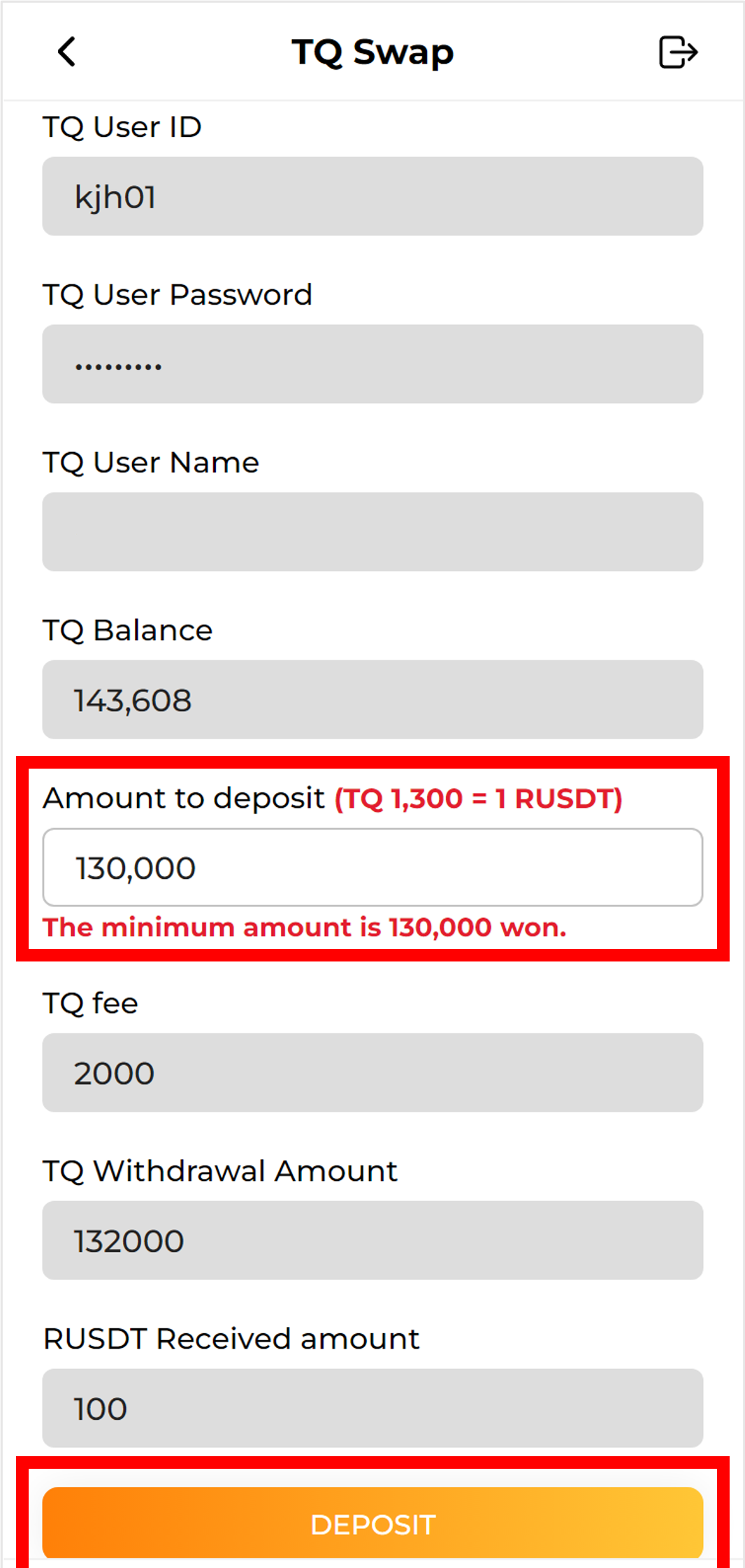
4) After checking your login information and your TQ balance, Enter the amount to deposit.
The amount to be withdrawn including the TQ fee and the amount that can be received in RUSDT are automatically calculated and displayed.
(The minimum deposit amount is 130,000.)
After confirming the amount you will receive in RUSDT and the amount including the fee, click the Deposit button.
Q) Where can I check the history of RUSDT exchange with TQ?
1) Click the withdrawal icon located on the bottom tab.
2) In the withdrawal list, click TQ SWAP.
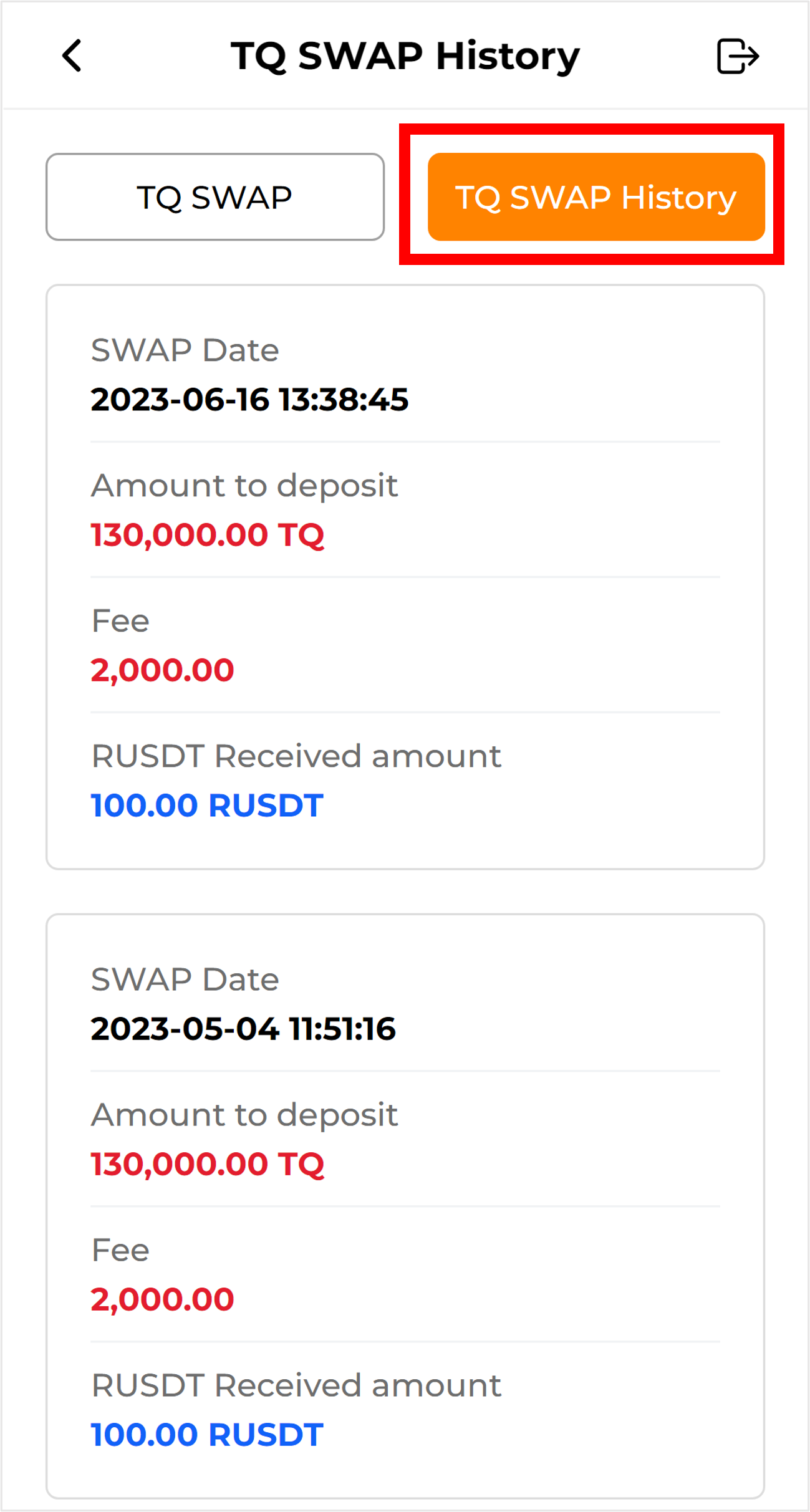
2) If you click tq swap history, you can check the exchange history.
Q) How do I exchange TQ with my RUSDT coin?
1) Click the withdrawal icon located on the bottom tab.
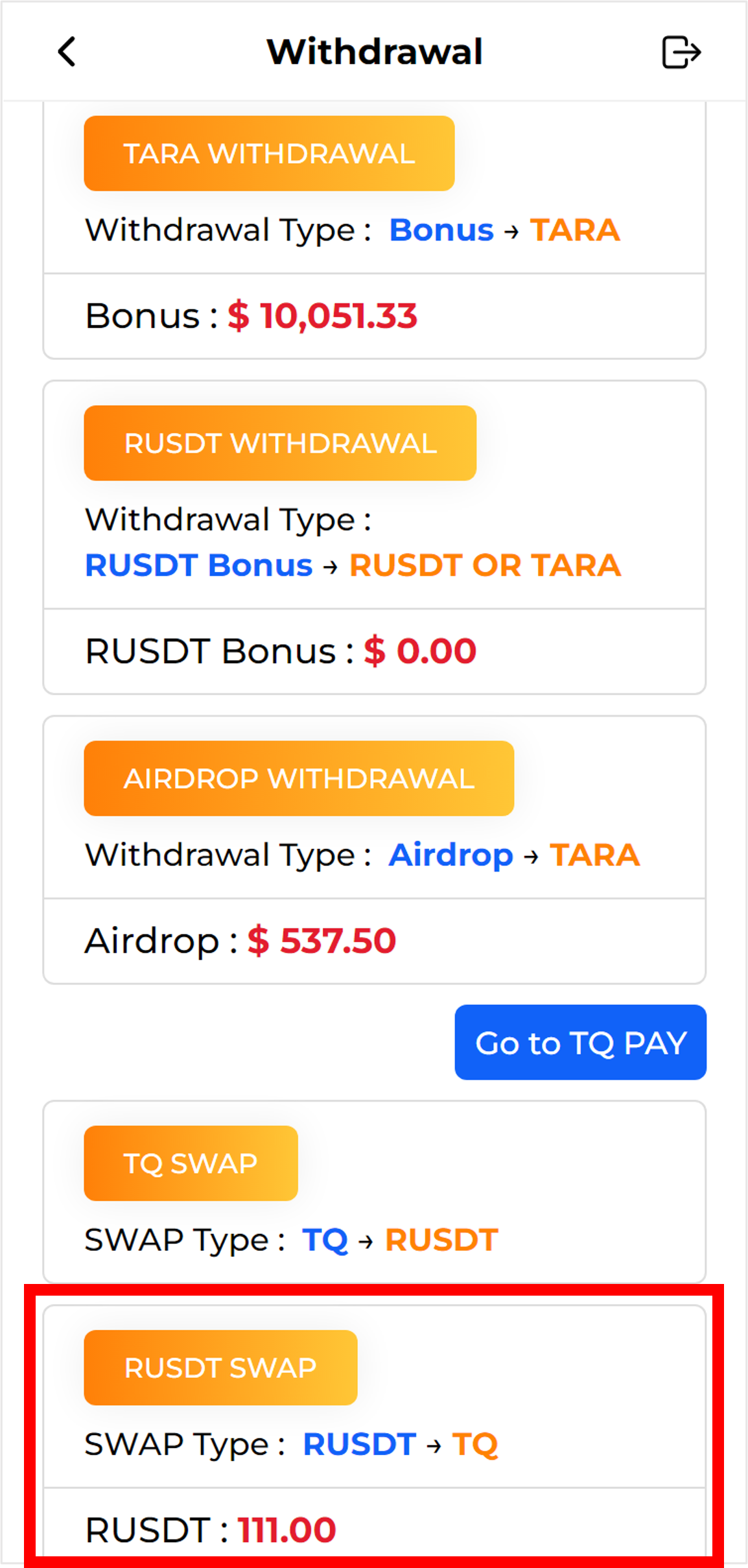
2) In the SWAP list, click RUSDT SWAP.
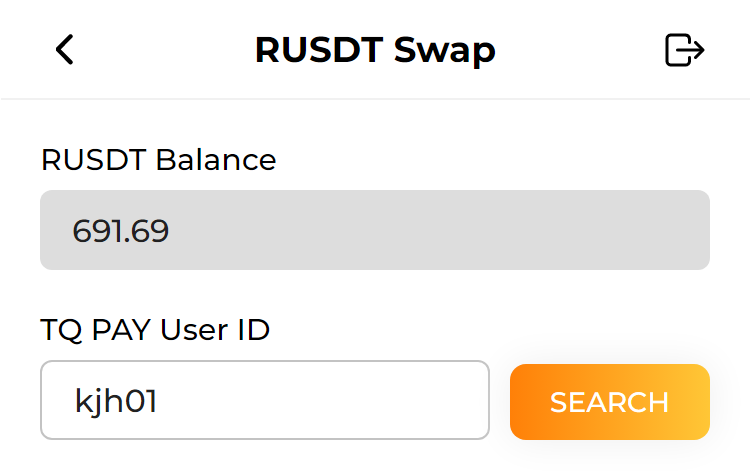
3) After checking the amount of RUSDT you have, enter your TQ member ID and click the Search button.
Go to TQ PAY(If you do not remember your ID, please access https://tqcard.net/ to find your ID.)
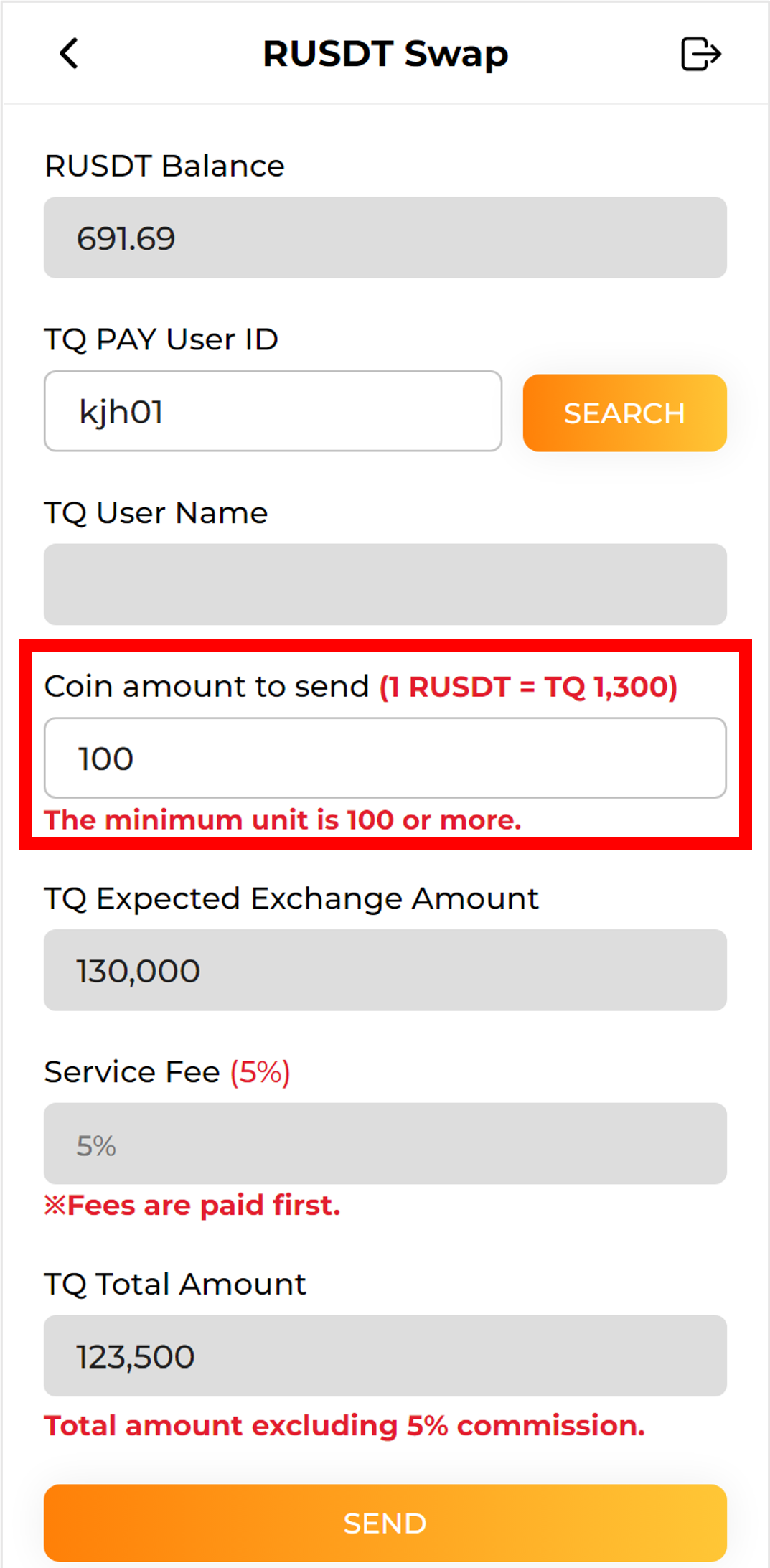
4) After checking the member name of the ID you searched for, enter the amount of coins to be exchanged for TQ. You can check the TQ expected exchange amount and the total amount received in TQ excluding fees.
(The service fee is 5%, paid first, and the minimum quantity of coins is 100.)
Please click the SEND button after checking the amount you will receive as TQ excluding the commission.
Q) Where can I check the history of TQ exchange with RUSDT?
1) Click the withdrawal icon located on the bottom tab.
2) In the SWAP list, click RUSDT SWAP.
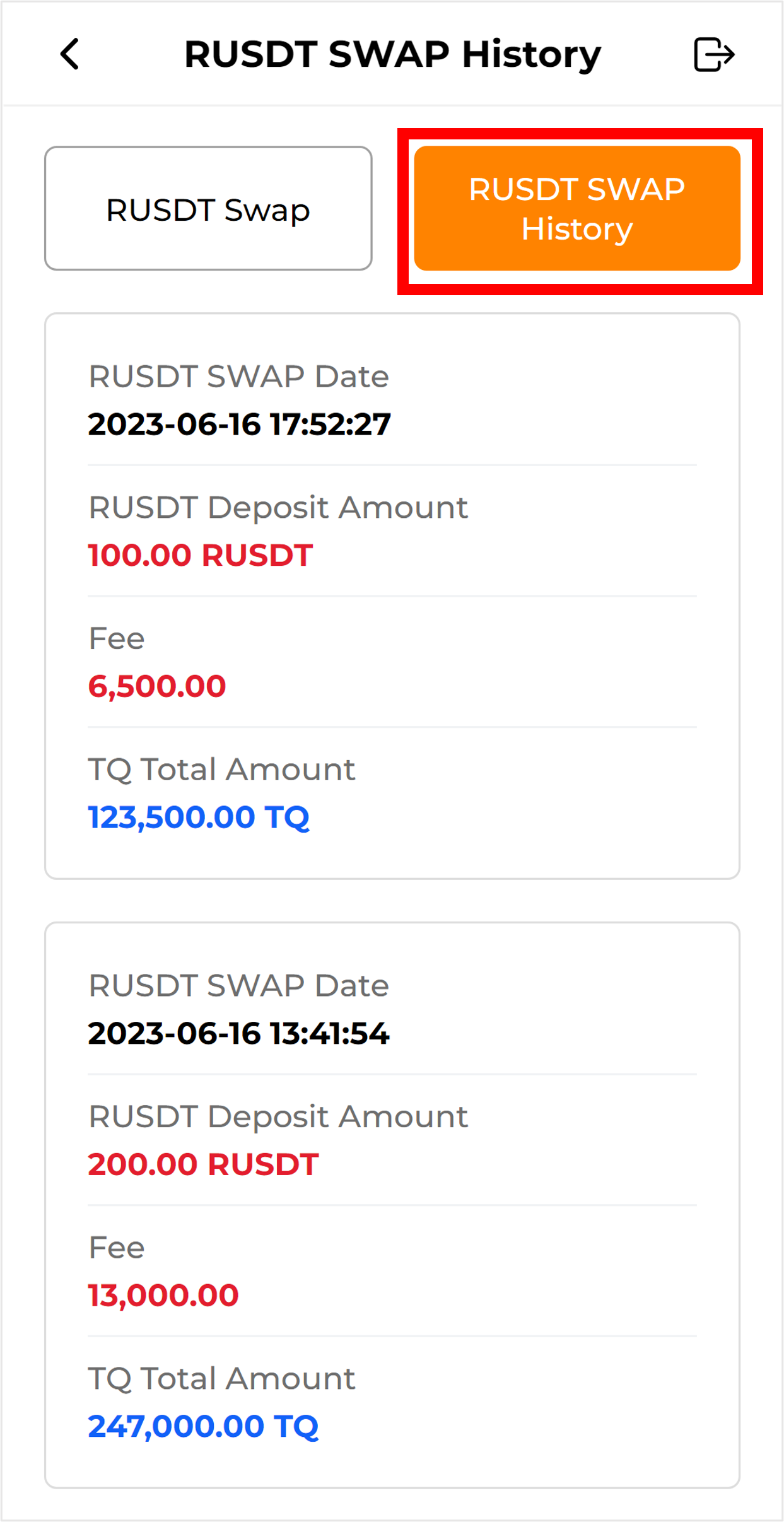
1) If you click RUSDT swap history, you can check the exchange history.